Team whiteboard
Every check passed: live updates, who is viewing, and team-only access.
- Result: Pass
- Checks: 7 of 7 pass
- Prompts: 3; every check passed after prompt 3
- Time: 5m55s in total
- Spent: $0.83
Checks
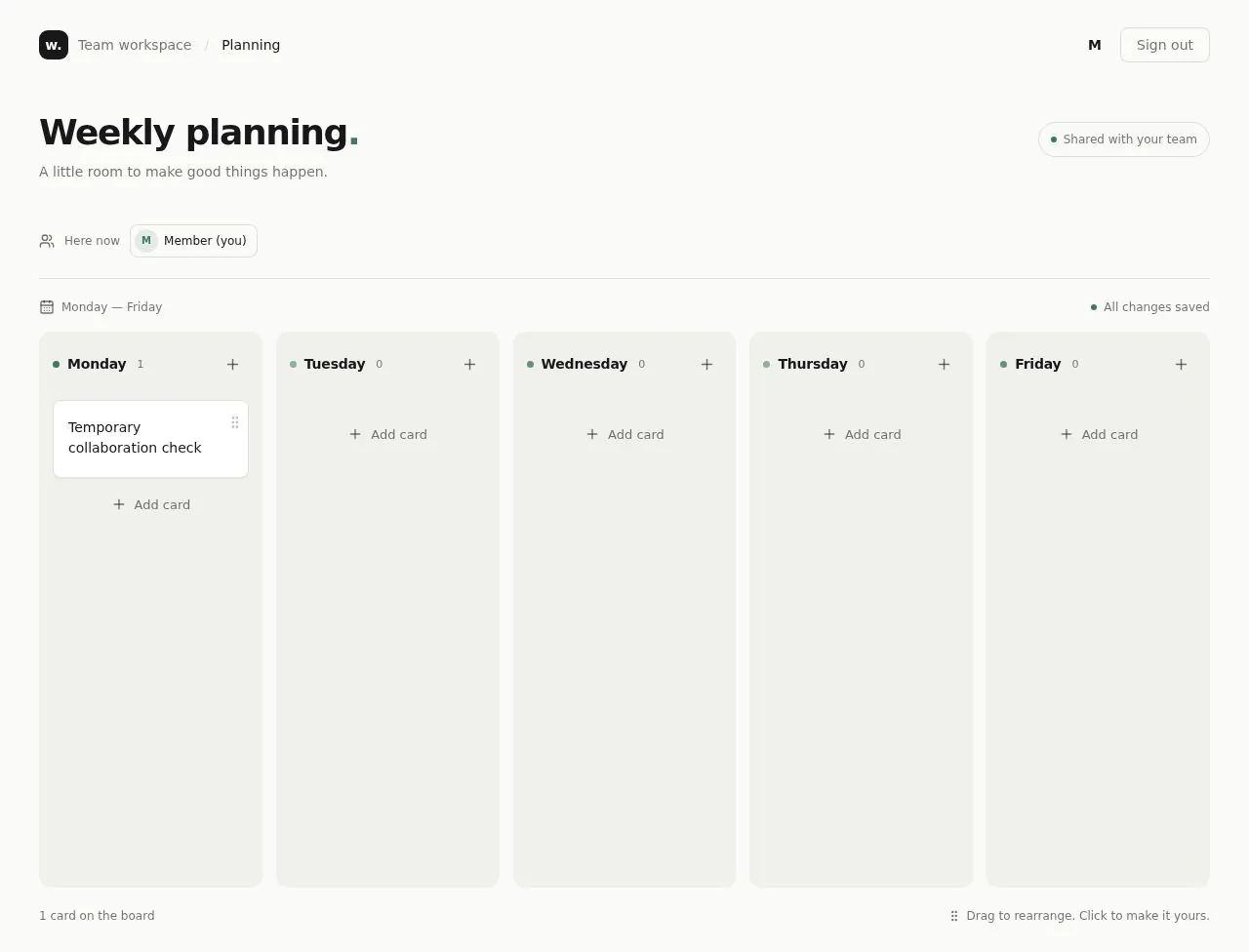
- Pass: A signed-in teammate opens the board and sees a column for each weekday · Signed in, the board showed five columns, Monday to Friday.
- Pass: A teammate adds a card, edits it and moves it to another day, and it stays after a reload · Added a Monday card, changed its text and dragged it to Wednesday; after a reload it was in Wednesday with the new text.
- Pass: A card added in one teammate's browser appears in another teammate's browser without reloading · With a second teammate's board open, a card added by the first appeared on it without a reload.
- Pass: The board shows the names of the teammates looking at it, not anonymous labels · Two teammates saved the names Alex Rivera and Sam Chen; both boards showed both names, with '(you)' on your own.
- Pass: A signed-out visitor cannot open or change the board · Signed out, opening the board went to sign-in, and adding a card was refused with 'Sign in first.'
- Pass: A signed-in teammate is not locked out of the board · A second teammate opened the board, edited a card and moved it to Tuesday; the first saw the change.
- Pass: Two signed-in teammates see each other's card changes live and each other's names on the board · Without reloading, each teammate saw the other's new card, its move from Monday to Tuesday and a text edit, and both names.
Run
- Run: 11 Nov 2026 · vibe prompts
- Builder: the Framer 4 agent on GPT 6.1 Sol, in a new project
- Customer: an AI agent playing the owner of Tack, writing in the Brief style
- Agent steps: 37 tool steps
- Prompt limit: 40 per app
- Cost: $0.71 for the builder, $0.11 for the judge
- Judge: an AI agent that tried each check in the live preview with a browser, signed in with each test account
Team whiteboard
Every check passed: live updates, who is viewing, and team-only access.
- Result: Pass
- Checks: 7 of 7 pass
- Prompts: 3; every check passed after prompt 3
- Time: 5m55s in total
- Spent: $0.83
Prompt 1 of 3
I’d like a weekly planning board for our small product and design team. When a signed-in teammate opens it, they should see five columns, Monday through Friday. Let us add cards to any day, open them to edit their text, and drag them to another day as plans change. Everything should still be there after refreshing the page. Keep it snappy, clean, and a little playful—more like Linear or FigJam than enterprise project software.
Built your weekly planning board with five weekday columns, editable cards,
- Pass: A signed-in teammate opens the board and sees a column for each weekday · Signed in, the board showed five columns, Monday to Friday.
- Pass: A teammate adds a card, edits it and moves it to another day, and it stays after a reload · Added a Monday card, changed its text and dragged it to Wednesday; after a reload it was in Wednesday with the new text.
Prompt 2 of 3
Now let’s make it feel like we’re all on the board together. When one of us adds, edits, or moves a card, everyone else looking at the board should see the change right away without refreshing. Also show who’s currently there using our actual names, not anonymous labels.
The board now shows card additions, edits, and moves live without
- Pass: A card added in one teammate's browser appears in another teammate's browser without reloading · With a second teammate's board open, a card added by the first appeared on it without a reload.
- Pass: The board shows the names of the teammates looking at it, not anonymous labels · Two teammates saved the names Alex Rivera and Sam Chen; both boards showed both names, with '(you)' on your own.
Prompt 3 of 3
Please make the board private to our team. Anyone who isn’t signed in shouldn’t be able to see it or change anything, but all six of us should still be able to open and use the shared board when we’re signed in—no teammates getting locked out.
The board and its data now require sign-in to view or change.
- Pass: A signed-out visitor cannot open or change the board · Signed out, opening the board went to sign-in, and adding a card was refused with 'Sign in first.'
- Pass: A signed-in teammate is not locked out of the board · A second teammate opened the board, edited a card and moved it to Tuesday; the first saw the change.
- Pass: Two signed-in teammates see each other's card changes live and each other's names on the board · Without reloading, each teammate saw the other's new card, its move from Monday to Tuesday and a text edit, and both names.
Team whiteboard
Every check passed: live updates, who is viewing, and team-only access.
- Result: Pass
- Checks: 7 of 7 pass
- Prompts: 3; every check passed after prompt 3
- Time: 5m55s in total
- Spent: $0.83
Real-time team planning board
Test accounts:
- Member: member@example.com
- Second member: member.2@example.com
Tack is the weekly planning board of Fieldnote, a small remote product team of six (product managers, designers and an engineer) who build a note-taking app. The board has one column per weekday, Monday to Friday. Anyone on the team adds cards, edits them and drags them between days, and everyone sees each change the moment it happens, along with who else is looking at the board right now. Only the team can open it, and everybody shows by their real name. It feels snappy and a little playful, like Linear or FigJam, and never like enterprise project software.
The app has one role, and every teammate has it.
- Teammates: sign in and plan the week together: add, edit, move, assign, colour and complete cards, step between weeks, see who is on the board and what they are doing, and invite or remove people from the team. Everyone has the same rights; there is no admin.
On first open, Tack holds the current week and the two weeks before it, with 34 realistic cards from Fieldnote's product and design work, and a team list of six people that already includes member@example.com and member.2@example.com.
Nothing is broken and everything works. Every button, link and form does what it says with real data. No page shows placeholder text, sample images, "coming soon", "not set up yet", lorem ipsum or a link to nowhere.
These are not part of Tack: several boards or projects, weekend columns, time tracking, estimates or story points, sprints, Gantt charts, file attachments, comments threads on cards, chat, video calls, integrations with Slack, GitHub or Linear, AI suggestions, sign-up for anyone outside the team, live cursors, emails when a card is assigned, an activity feed, and requests to join.
Brand and visual direction
Tack is for a small team of people who make software for a living and use good tools all day. They have Linear, Figma and FigJam open in other tabs, they notice slow or clumsy interfaces at once, and they want planning to take two minutes on Monday morning and a few seconds whenever plans change. They work across time zones, so seeing who is around and what just changed matters more than any report.
Name and voice: The product is called Tack, with the line "The week, pinned up together." A tack pins a card to a board; the app is the shared wall the team no longer has. The copy is short, friendly and dry, the way a teammate writes in a stand-up note: "Add card", "Moved to Thursday", "Hana is here", "Nothing planned yet. Press N to add a card." It uses no exclamation marks, emoji or hype words such as "supercharge", "unleash", "synergy" or "productivity powerhouse".
Visual direction: Tack looks like a tidy pinboard drawn by a product designer: a bright, quiet canvas, crisp cards, and small touches of colour and motion that make it pleasant to use.
- Colour: an off-white canvas (about #FAFAF7), white cards (#FFFFFF) with a 1 px border (about #E6E4DE), near-black ink (about #17171A), and secondary text in a cool grey (about #6E6E73). One accent, a warm marigold (about #E3A21A, with near-black text on it), marks the main action, today's column, the selected card and focus rings. Cards can carry one of six muted label colours (sage, sky, sand, rose, lilac and stone) as a thin left edge and a small tag. Each teammate has their own presence colour from a fixed set, used for their avatar ring and their "is editing" marker. There are no gradients, glows, glass effects or purple-blue palettes.
- Type: Sora for headings, the wordmark, the weekday names and dates, and Onest for card text and the interface, both free on Google Fonts. Card text is 14 px, column headings 15 px semibold, and dates use tabular figures.
- Shape: 8 px corner radii on cards and 10 px on dialogs, 1 px borders, and a soft shadow only on a card being dragged or hovered.
- Layout: a slim top bar with the wordmark, the week switcher ("This week", previous and next arrows, and the date range "10 to 14 Nov"), the avatars of who is on the board, and the signed-in teammate's menu. Below it, five equal columns fill the width up to 1,600 px. On tablet the columns become a sideways-scrolling row of five, each about 260 px wide, snapping to a column. On phone the board shows one day at a time with Monday to Friday tabs at the top (today selected) and swiping between days; a card opens as a full screen.
- Imagery: no illustrations or stock photos. Teammates show as their uploaded photo or a monogram in their presence colour. Empty columns show one short line, not a drawing.
- Motion: quick and light (100 to 180 ms). A picked-up card lifts and tilts by about two degrees, other cards slide aside to make room, and a dropped card settles with a short ease, not a bounce. A card that someone else just changed glows briefly with that person's presence colour. Anyone who has chosen reduced motion in their system settings gets fades instead.
- Every screen works at 390 px wide with no sideways scrolling of the page, every control is usable by keyboard with a visible focus ring, and a card can be moved without dragging (from its menu or with keyboard shortcuts), so touch and keyboard users are never stuck.
Pages beyond the product: The sign-in page carries the Tack wordmark and line and says the board is private to the Fieldnote team. A Shortcuts sheet (opened with ? or from the menu) lists every keyboard shortcut. A branded not-found page links back to this week's board.
Checks:
- Every screen shows the Tack wordmark and the same top bar, and the Shortcuts sheet lists real shortcuts that work
- The design follows the direction above: off-white canvas, white bordered cards, near-black text, one marigold accent on main actions and today's column, Sora headings with Onest interface text, and no gradients, emoji or stock imagery
- The board, an open card and the team settings have no sideways page scrolling at phone width, and adding a card stays reachable
- Opening a made-up address while signed in shows a branded not-found page with a way back to the board
Board: what Tack starts with
On first open, Tack holds three weeks: the current week (Monday to Friday of today's date) and the two weeks before it. The current week has 16 cards and each earlier week has 9, so every day of the current week has at least two cards and the earlier weeks show what was done. Cards read like Fieldnote's real work: "Ship offline sync to beta group", "Review onboarding flow v3 with Mia", "Usability test: tagging, 4 sessions", "Write release notes for 2.8", "Fix editor jump on paste (iOS)". Each has a label (Product, Design, Research, Engineering, Release or Team), most have an assignee, a third have a short description with a link or a short checklist, and in the earlier weeks most cards are marked done.
The team list starts with six people: member@example.com and member.2@example.com (each shown by the name they set when they first sign in), and four teammates who have been invited by email and are assigned to cards, with real-sounding names: Mia Laurent (design lead), Tomás Reyes (engineer), Hana Sato (researcher) and Jonah Price (product manager). Every card change in the starting data has a history entry with who made it and when, so each card's history shows real activity from the first open.
Checks:
- The current week shows 16 cards, with at least two on each weekday, and the two earlier weeks show their cards with most marked done
- Ten cards picked at random each have a real-sounding title, a label, and an assignee from the team
- The team list shows six people, including the member and member 2
- No card or name looks like filler: no "Card 1", "Test", "John Doe" or lorem ipsum
Teammate: planning the week
The board opens on the current week. Each column has the weekday and date ("Wed 12"), the number of cards, and an "Add card" button at the bottom. Today's column has a marigold header line and is the first one shown on phone.
Adding cards: Clicking "Add card", pressing N (adds to today, or to the column under the pointer) or double-clicking empty space in a column opens a new card in place with the cursor in its title. Enter saves it and starts another one below; Escape cancels an empty card. A title is required and can be up to 140 characters; an empty title is never saved.
Editing cards: Clicking a card opens it in a panel with its title, description (plain text with line breaks and links that open in a new tab), label, assignee, a checklist of up to 20 items, a Done toggle and the card's history. Changes save as the teammate types, with a quiet "Saved". Clicking a card's title on the board edits it in place.
Moving cards: Dragging a card moves it to another day or another position in the same day. The order within a day is kept and is the same for everyone. Every card also has a "Move to" menu (Monday to Friday, and "Next week" or "Previous week"), and with a card selected, the keyboard moves it: Alt plus left or right arrow changes the day, Alt plus up or down changes the position.
Done and deleting: Marking a card done gives it a check, greys its text slightly and moves it to the bottom of its day. Deleting a card asks nothing but shows "Card deleted" with an Undo button for 8 seconds, and Undo brings it back in its place for everyone.
Weeks: The previous and next arrows step through weeks, and "This week" jumps back. Each week has its own address (for example /week/2026-11-09), so a teammate can share a link to next week's plan. A week with no cards says "Nothing planned for this week yet" with an Add card button. "Carry over" on the current week moves every card that is not done from the previous week onto the same weekdays this week, after confirming how many cards will move.
Checks:
- The member opens the board and sees five columns, Monday to Friday, with dates for the current week and today's column highlighted
- The member adds a card on Monday, edits its text, drags it to Wednesday, and after a reload it is on Wednesday with the new text
- Moving a card with its "Move to" menu or with Alt and the arrow keys works the same as dragging
- Deleting a card and pressing Undo brings it back in the same place, and after a reload it is still there
- The next-week arrow opens next week at its own address, and opening that address in a new signed-in window shows the same week
- Saving a card with an empty title is refused, and nothing blank appears on the board
Teammate: working together live
Tack is shared in real time. Every teammate looking at the same week sees the same board.
Live changes: When one teammate adds, edits, moves, completes or deletes a card, everyone else sees it within about a second without reloading. A card someone else changed glows briefly in that person's colour with a small label of their name ("Hana moved this"). A card being dragged by someone else shows in their colour, following their drag, and lands where they drop it. Order stays consistent: if two people drop cards into the same day at once, both cards land and both boards show the same order.
Editing at the same time: When a teammate opens a card, the others see that person's avatar on the card ("Mia is editing"). If two people edit the same card, each field shows the latest saved text, and a field the other person is typing in shows their name beside it, so nobody's typing is silently overwritten mid-sentence. If someone deletes a card that another teammate has open, the open panel says "Tomás deleted this card" and offers Undo.
Presence: The top bar shows the avatars of everyone on the board right now, by their real name, with a ring in their presence colour; hovering or tapping an avatar shows their name and which week they are looking at. The signed-in teammate's own avatar says "(you)". Someone who closes the tab disappears from the bar within about 15 seconds.
Connection: If the connection drops, a small bar says "Reconnecting..." and changes made meanwhile are kept and sent when the connection returns, after which the board catches up with everyone else's changes. Nobody is shown an old board as if it were current.
Checks:
- With the board open for the member and member 2, a card added by the member appears on member 2's board without a reload
- A card moved from Monday to Tuesday and a text edit by member 2 appear on the member's board without a reload, with member 2's name shown on the changed card
- Both boards show the names of both teammates in the top bar, not anonymous labels, and each shows "(you)" on their own
- When member 2 opens a card, the member sees "is editing" with member 2's name on that card
- When member 2 closes their tab, their avatar disappears from the member's top bar shortly after
- Turning the network off for the member shows "Reconnecting...", and a card added while offline appears for member 2 once the connection returns
Teammate: assignees, labels and filters
Each card can have one assignee from the team and one label. The top bar has quick filters: "My cards", a teammate's avatar (shows only their cards), and the six labels. Filters dim the cards that do not match rather than hiding them, so the shape of the week stays visible, and a "Clear" link removes them. Filters are personal and do not change what others see.
Checks:
- The member assigns a card to member 2, and member 2's board shows their avatar on it without a reload
- Choosing "My cards" dims every card not assigned to the signed-in teammate, and Clear restores the board
Teammate: team, names and access
Profile: On their first sign-in, each teammate sets the name everyone will see (required, up to 40 characters) and can upload a photo (JPG, PNG or WebP, up to 5 MB), cropped to a circle. They can change both later from their menu, and the new name shows on the board and in everyone's presence bar at once.
Team: The Team page lists everyone on the team with their name, email, photo and whether they have signed in yet. Any teammate can invite someone by email; the invitation email arrives with the subject "Join Fieldnote's board on Tack", who sent it, and a link to sign in. Anyone on the list can sign in with that email and get straight in, with no further step. Any teammate can remove someone after confirming; their cards stay, unassigned. The team cannot remove its last member.
Who gets in: Only people on the team list can see or change anything. A signed-out visitor who opens any address is sent to sign in, and returns to that address afterwards. A signed-in account that is not on the list sees a page that says "This board is private to the Fieldnote team" with a note to ask a teammate for an invitation, and sees no card, name or count. Trying to change the board without being on the team is refused, even by typing an address or replaying a request. Everyone on the list is never locked out, including the first time they sign in.
Checks:
- Member 2 signs in for the first time, sets their name, and lands on the shared board with the team's cards, with no "No access" page
- The member changes their name, and member 2 sees the new name in the presence bar without a reload
- The member invites a new email address, the invitation arrives in that inbox with a working link, and the person shows on the Team page as not signed in yet
- A signed-out visitor who opens the board or a week's address is sent to sign in and sees no cards
- A signed-out visitor cannot add or change a card, and nothing they try appears on the board
Speed
Tack feels instant. The board shows the week's cards as soon as the page loads, without a spinner over empty columns. Adding, editing and moving a card shows the change immediately in the teammate's own browser, before the save completes; if a save fails, the card goes back and a small message says what happened instead of quietly showing something that was not saved. Changes from others arrive within about a second. Dragging stays smooth with 40 cards in a week, and stepping to another week shows it without a full page reload.
Checks:
- The board shows its cards within about 2 seconds of opening, and dragging a card follows the pointer with no visible lag
- A change made in one teammate's browser shows in the other's within about a second
- Switching to the previous week and back is immediate and does not reload the page
Everything works
These checks apply to every screen above, for teammates, including the member and member 2 together. The number before each check is its weight: 3 means the app fails if the check fails, 2 a serious defect, 1 a defect worth noting.
For every app:
- Must pass: Every feature this spec describes is there, and each fix the agent claims holds when the original steps are repeated
- Serious: At phone (390 px), tablet (810 px) and desktop (1,200 px and up), the board (day tabs on phone, a snapping row on tablet, five columns on desktop), an open card, the Shortcuts sheet and the Team page show nothing cut off, no sideways page scrolling, a reachable top bar and Add card, and inputs of at least 16 px
- Serious: Every week arrow, "This week", day tab, card, link in a card's description, menu item and the Team link goes to the right place; reloading a week's address, an open card or the Team page on the live address works; a made-up address shows the branded not-found page; Back returns to the previous week
- Minor: Teammates' photos load as circles without stretching or breaking, and pasting Tack's live link into a chat app shows Tack's own name, not a builder default
- Serious: Later work did not break earlier work: after live presence, filters and the team page are built, adding, editing, moving, Undo, Carry over and the three starting weeks of 34 cards still work and are unchanged
- Minor: After each prompt, the agent's reply says honestly what changed and what it could not verify (including anything that still needs a key or account), is never empty, never presents preview-only as done, and never claims a fix that is not there in the live app
For this app:
- Must pass: Every flow works end to end with fresh input, checked where it lands: a card the member adds, moves, assigns, completes or deletes shows that way on member 2's board; Carry over moves exactly the unfinished cards onto this week; a changed name shows in the presence bar; an invited person gets the email and gets in
- Must pass: Cards, text, descriptions, checklists, labels, assignees, done marks, order within a day, moves between days and weeks, deletions and undos, names, photos and team changes stay as saved after a reload and in another browser, for both the member and member 2
- Must pass: Everyone on the team list, including member 2 on their first sign-in, reaches the board with the same rights; a signed-out visitor, an account not on the list or a removed teammate sees no card, name or count, and cannot add or change a card by address or a replayed request
- Must pass: On the published address, member 2 signs up, confirms by email, signs in, reloads, signs out and resets their password, and the invitation link and the return to a week's address after sign-in land on the live domain
- Serious: The invitation "Join Fieldnote's board on Tack" arrives in a real inbox, not spam, from the app's address, with the sender's name and a working sign-in link to the live app, and its plain text reads cleanly
- Serious: The published app behaves like the preview: the same weeks, live changes, presence, "is editing" and invitations work there, and no live page mentions "preview"
- Serious: Empty states ("Nothing planned for this week yet", an empty day), loading states and errors ("Reconnecting...", a failed save that puts the card back with a message, "Tomás deleted this card") are clear and in plain words, with no technical or setup text
- Serious: Profile photos in JPG, PNG and WebP up to 5 MB upload, crop to a circle and show on cards and in the presence bar; other file types and larger files are refused with a clear message
- Serious: As a signed-out visitor and as an account not on the team list, the page source and network requests contain no secret keys, no cards and no teammates' names or emails
- Minor: With the member and member 2 on the same week, additions, edits, moves, completions, deletions, someone else's drag, "is editing" markers and presence show within about a second without a reload, and two cards dropped into the same day at once land in the same order on both boards
- Minor: An empty title, a title over 140 characters, an empty name at first sign-in and a malformed or already-listed invitation email are refused with clear messages, and pressing Enter twice or reconnecting after going offline creates no duplicate card
- Minor: "My cards", a teammate's avatar and a label each dim exactly the cards that do not match, combine correctly, Clear restores the board, they stay applied after a reload, and member 2's board is not changed by the member's filters
Done when
Checks:
- A signed-in teammate plans a week: adds cards on Monday to Friday, edits, assigns, labels, moves and completes them, and everything is still there after a reload
- Two signed-in teammates see each other's card additions, moves and edits live, see each other by name in the presence bar, and see who is editing a card
- Everyone on the team list gets in on their first sign-in, invitations arrive in the inbox, and signed-out visitors and other accounts see nothing and change nothing
- With three weeks of starting cards, the board feels snappy, looks like Tack's own brand, and nowhere shows a placeholder, dead link or "not set up" state
Team whiteboard
Every check passed: live updates, who is viewing, and team-only access.
- Result: Pass
- Checks: 7 of 7 pass
- Prompts: 3; every check passed after prompt 3
- Time: 5m55s in total
- Spent: $0.83
Tack: the simulated customer
An AI agent plays the owner of Tack and writes every prompt. It reads the spec and this file, never the Framer 4 agent's code.
- Style: Brief.
Persona and why it fits
Brief. Collaborative tools are often specified up front in a pasted product brief (columns, card fields, presence) before any iteration.
Prompt length and tone
- Length: Opens with a brief of 100 to 400 words, written like an AI-drafted product brief with headings, sections and tone notes. Follow-ups are mostly short tweaks or guarded orders.
- Tone: The brief is polished and structured ("Build a…", sections, sometimes "Act as a senior product designer"). Follow-ups are their own voice: shorter and more direct.
- Language: English only.
Example prompts for this app:
- "Act as a senior product designer. Build Tack, the weekly planning board for Fieldnote, our remote product team of six. Purpose: everyone sees what is happening this week without a meeting. Layout: one column per weekday, Monday to Friday, with today highlighted, and a way to step between weeks. Cards: a title, an assignee, a colour and a done state. Interactions: teammates add, edit and drag cards between days; changes appear live for everyone without a reload; avatars at the top show who is on the board right now. Access: only the team can open it, everyone shows by their real name, and any teammate can invite or remove people. Style: snappy and a little playful, readable on a laptop and a phone."
- "no avatars showing who's on the board"
- "Card editing only: when someone opens a card, show their avatar on it as editing, and never overwrite text another person is typing. Don't change the board layout."
Style mix
Turn 1 is always the brief. After that:
- Brief: 40% · 17% · 33% · 10%
Switches come early and cluster around breakage: a failed fix or an unrequested change makes the next prompt likelier to be longer and more exact.
How they choose the next prompt
After the brief, they compare the result with their own brief, section by section. Whatever is most missing or most broken goes next. A whole missing section gets a guarded spec order; a detail gets a short line. Order of attention for this app:
- Anything broken: a control that does nothing, a page that errors, a broken image or link, a layout broken on phone, a claimed change that isn't there.
- The weekday columns, stepping between weeks, and the card fields.
- Adding, editing, moving and completing cards, live for everyone, with presence.
- Team-only access, inviting and removing teammates, and nobody locked out.
- Everything else in the spec, including the brand and copy rules, in spec order.
How they react to breakage
- Right after the first build, about half send a Specify-style correction (median turn 2) and half send short tweaks.
- If the first build is far from the brief, about 1 in 10 later prompts is the brief again, re-pasted with the missing parts highlighted.
- Broken controls get a short line; anything the agent removed gets a guarded order to put it back.
- If the agent claims a section exists that isn't there, they paste the section of the brief and ask where it is.
Stop rule
- They keep prompting until the judge says every check in the spec is met, or until prompt 40, whichever comes first.
- The persona shapes how they prompt and react, never when they stop: no giving up, no stopping early because it looks good enough.
- The judge also grades whether the agent's replies are honest (claimed changes match the app), so the simulated user reports false claims as they see them and doesn't take a claim on trust.