Team CRM
Every check passed: leads, owners, notes and a shared stage board.
- Result: Pass
- Checks: 7 of 7 pass
- Prompts: 3; every check passed after prompt 3
- Time: 3m23s in total
- Spent: $0.56
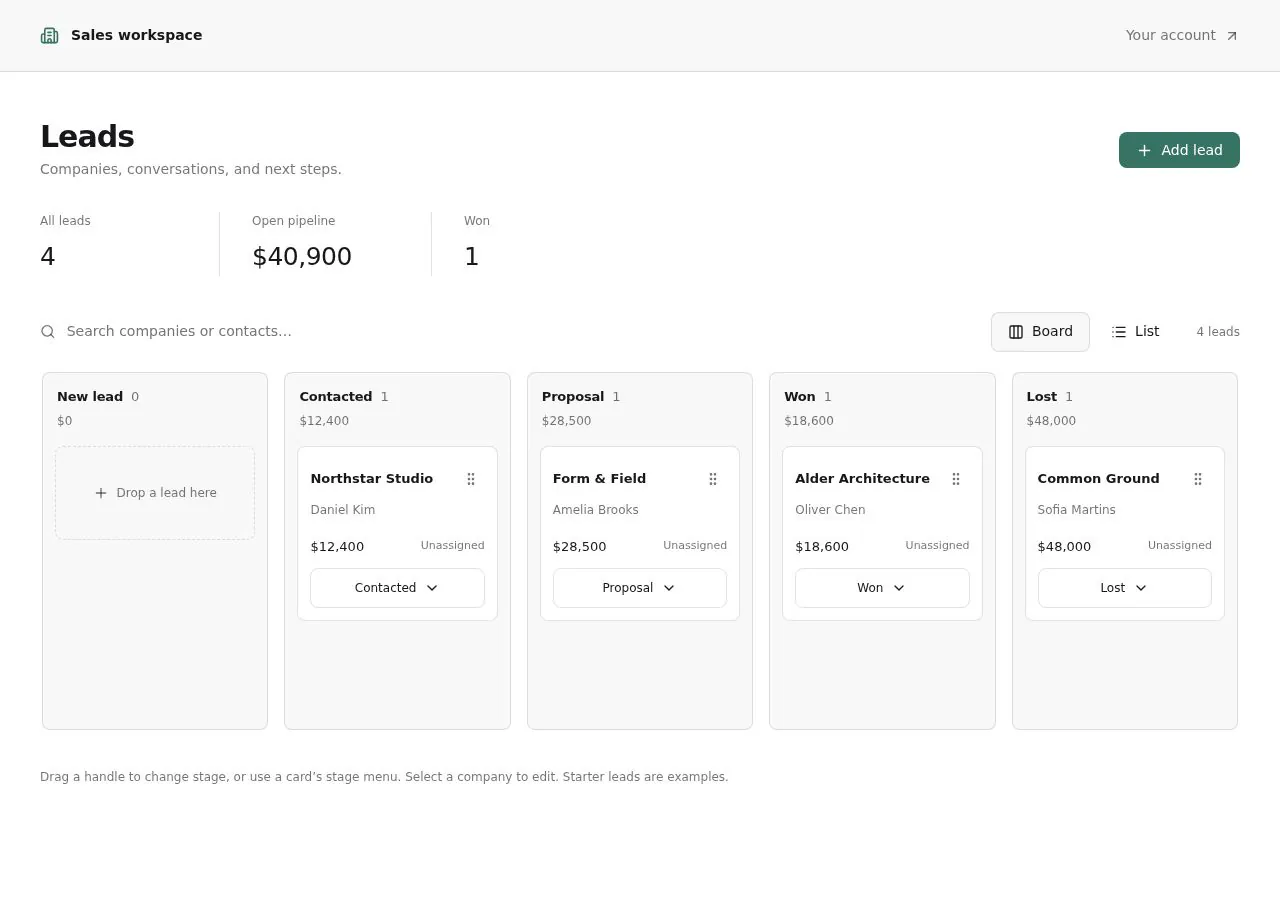
Checks
- Pass: A signed-in teammate adds a lead with company, contact, value and stage and it stays after a reload · Signed in, added Cedar Office Test (Jamie Oak, $23,500, New lead); after a reload all of it was there.
- Pass: A teammate sets a lead's owner and adds a note to it · Set the owner to Admin and added the note 'Needs 20 adjustable desks; send oak samples.'; both were there after a reload.
- Pass: The board shows a column per stage, including won and lost · The board had New lead, Contacted, Proposal, Won and Lost columns.
- Pass: A teammate moves a lead to won and it stays there after a reload · Dragged Common Ground from New lead to Won; after a reload it was still in Won.
- Pass: Another signed-in teammate sees the same lead in the same stage · The admin put Shared Desk Test in Proposal; the other teammate saw it with the same contact, $1,234 and Proposal.
- Pass: A signed-out visitor cannot see the pipeline or any lead · Signed out, opening the pipeline or a lead went to sign-in.
- Pass: A lead added by one teammate shows for another teammate and not for a signed-out visitor · One teammate added Privacy Test Furnishings ($7,350); the other saw it after a reload, and signed out it went to sign-in.
Run
- Run: 11 Nov 2026 · vibe prompts
- Builder: the Framer 4 agent on GPT 6.1 Sol, in a new project
- Customer: an AI agent playing the owner of Tenon, writing in the Brief style
- Agent steps: 23 tool steps
- Prompt limit: 40 per app
- Cost: $0.45 for the builder, $0.11 for the judge
- Judge: an AI agent that tried each check in the live preview with a browser, signed in with each test account
Team CRM
Every check passed: leads, owners, notes and a shared stage board.
- Result: Pass
- Checks: 7 of 7 pass
- Prompts: 3; every check passed after prompt 3
- Time: 3m23s in total
- Spent: $0.56
Prompt 1 of 3
I’d like our signed-in teammates to be able to add sales leads for the companies we’re selling custom office furniture to. Each lead should have a company, contact, deal value and stage, plus a way to assign someone on our team as the owner and add a note. Please make sure everything is saved and still there after refreshing the page. Keep adding and viewing leads simple and pleasant, more like Attio or Folk than a heavy CRM.
Built Leads with simple adding and editing, teammate assignment, stages,
- Pass: A signed-in teammate adds a lead with company, contact, value and stage and it stays after a reload · Signed in, added Cedar Office Test (Jamie Oak, $23,500, New lead); after a reload all of it was there.
- Pass: A teammate sets a lead's owner and adds a note to it · Set the owner to Admin and added the note 'Needs 20 adjustable desks; send oak samples.'; both were there after a reload.
Prompt 2 of 3
Can we see our leads on a simple pipeline board, with a column for each stage from New through Won and Lost? I’d like teammates to drag a lead into another column as it progresses, including marking a deal won or lost. Please make sure the move is saved so it stays in the right column after refreshing, and everyone on the team sees the same updated board. Keep it light and easy to scan.
Added a pipeline board with all five stages, including Won and Lost.
- Pass: The board shows a column per stage, including won and lost · The board had New lead, Contacted, Proposal, Won and Lost columns.
- Pass: A teammate moves a lead to won and it stays there after a reload · Dragged Common Ground from New lead to Won; after a reload it was still in Won.
Prompt 3 of 3
Please make sure this is a private pipeline for our three-person team. When another teammate signs in, they should see the same leads in the same stages, including any changes we’ve made—not their own separate board. Anyone who’s signed out or isn’t on our team shouldn’t be able to see the pipeline or any lead details.
Which three email addresses should have access?
- Pass: Another signed-in teammate sees the same lead in the same stage · The admin put Shared Desk Test in Proposal; the other teammate saw it with the same contact, $1,234 and Proposal.
- Pass: A signed-out visitor cannot see the pipeline or any lead · Signed out, opening the pipeline or a lead went to sign-in.
- Pass: A lead added by one teammate shows for another teammate and not for a signed-out visitor · One teammate added Privacy Test Furnishings ($7,350); the other saw it after a reload, and signed out it went to sign-in.
Team CRM
Every check passed: leads, owners, notes and a shared stage board.
- Result: Pass
- Checks: 7 of 7 pass
- Prompts: 3; every check passed after prompt 3
- Time: 3m23s in total
- Spent: $0.56
Team sales pipeline
Test accounts:
- Member: member@example.com
- Admin: admin@example.com
Tenon is the private sales pipeline of Oakwright, a three-person company that designs and builds custom office furniture for other companies: desks, meeting tables, reception counters and storage for offices of 20 to 300 people. The team wants its own shared pipeline instead of a big CRM. Each lead is a company they are selling to, with a contact, a deal value, a stage, an owner and notes. They drag leads across the stages from New to Won or Lost, and everyone on the team sees the same pipeline at the same moment. It should feel light and pleasant to open every day, like Attio or Folk, and never like Salesforce.
The app has two roles.
- Teammates: (member@example.com and the third seller) sign in and work the pipeline: add and edit leads, drag them between stages, take ownership, write notes, set next steps and import leads from a spreadsheet.
- The owner: (the admin account, Oakwright's founder) does everything a teammate does, and also manages the team: invites and removes teammates, and renames, reorders, adds or removes pipeline stages.
On first open, Tenon holds 42 realistic Oakwright leads across every stage, owned by the three teammates, with notes, next steps and a history of stage changes going back four months.
Nothing is broken and everything works. Every button, link and form does what it says with real data. No page shows placeholder text, sample images, "coming soon", "not set up yet", lorem ipsum or a link to nowhere.
These are not part of Tenon: email inbox syncing or sending sales emails from the app, calendar syncing, quotes and invoices, payments, a customer-facing portal, product catalogues, marketing campaigns, AI-written notes or lead scoring, public sign-up for anyone outside Oakwright, @mentions in notes, emails when a lead is assigned or a teammate is mentioned, exporting leads as CSV, sales reports and charts, and restoring deleted leads.
Brand and visual direction
Tenon is used by three people who sell considered, well-made furniture and spend their day on calls, site visits and workshop floors, not in software. They open it in the morning, between calls on a laptop and sometimes on a phone in a client's lobby. They want to see the whole pipeline at once, change a lead in two clicks, and close the tab.
Name and voice: The product is called Tenon, with the line "Oakwright's pipeline, in one place." A tenon is the joint that fits a piece of furniture together; the app fits the team's sales together. The copy is short, warm and plain, like a note from a colleague: "Add lead", "Move to Proposal", "Marked as won", "Nothing due today". It uses no exclamation marks, emoji or hype words such as "supercharge", "unleash", "skyrocket" or "crush your quota".
Visual direction: Tenon looks like a well-kept workshop notebook: calm paper colours, crisp type, and colour used only where it carries meaning.
- Colour: a light warm-grey page (about #F4F3F0), white cards (#FFFFFF), near-black ink for text (about #1C1B19), secondary text in a warm grey (about #6B6862) and hairline borders (about #E3E0DA). One accent, a deep moss green (about #3E6B48), is used for the main action on a screen, the selected view and focus rings. Stage colours are muted tints (sand, clay, slate, moss for Won, and a soft brick for Lost) shown only as a small dot and a column header tint. There are no gradients, glows, glass effects or purple-blue palettes.
- Type: Red Hat Display for headings, the wordmark and the large money totals, and Red Hat Text for all interface and body text, both free on Google Fonts. Body text is 14 to 15 px; deal values and totals use tabular figures and always show the currency, for example "$23,500".
- Shape: corner radii of 6 px on cards and 8 px on dialogs, 1 px borders instead of drop shadows, and a soft shadow only on a card while it is being dragged.
- Layout: a slim left sidebar with the wordmark, Pipeline, Leads, My day, Activity and Settings, and the signed-in teammate's avatar at the bottom. The main area has a maximum width of 1,440 px. On desktop the board shows all stage columns side by side at about 280 px each and scrolls sideways only if the stages do not fit. On tablet the sidebar collapses to icons. On phone the sidebar becomes a bottom bar, the board shows one stage at a time with tabs for the stages, and a lead opens as a full screen.
- Imagery: no illustrations or stock photos. Teammates show as their uploaded photo or a monogram in a stage-neutral colour. Companies show as a monogram square with their initials. Empty states use one line of text and one action, not a drawing.
- Motion: short (120 to 180 ms) and purposeful. A dragged card tilts very slightly and the target column highlights; dropping it settles the card in place. Nothing bounces.
- Every screen works at 390 px wide with no sideways scrolling of the page, every control is usable by keyboard with a visible focus ring, and a lead can be moved to another stage without dragging (from its stage menu), so touch and keyboard users are never stuck.
Pages beyond the product: The sign-in page carries the Tenon wordmark, the line and Oakwright's name, and says plainly that it is for the Oakwright team. A Help page explains the stages, how ownership and next steps work, and how to import a spreadsheet. A branded not-found page links back to the pipeline.
Checks:
- Every screen shows the Tenon wordmark and the same sidebar, and the Help page has real content, not a placeholder
- The design follows the direction above: warm grey page, white cards, near-black text, one moss green accent for main actions, Red Hat Display headings with Red Hat Text interface text, small radii and hairline borders, and no gradients, emoji or stock imagery
- The pipeline, a lead and the add-lead form have no sideways page scrolling at phone width, and the main actions stay reachable
- Opening a made-up address while signed in shows a branded not-found page with a way back to the pipeline
Pipeline: what Tenon starts with
On first open, Tenon holds 42 leads that read like Oakwright's real work. Each has a company with a believable name and city (for example "Harbourline Architects, Hamburg", "Kestrel Health, Manchester", "Pine & Vale Co-working, Copenhagen"), a contact with a name, job title, email and phone, a deal value between $4,800 and $186,000 written for the job ("42 sit-stand desks and 6 meeting tables"), a stage, an owner, a source (Referral, Website enquiry, Trade show, Repeat client, Architect partner or Outbound), and an expected close date.
The default stages are New, Contacted, Site visit, Proposal, Negotiation, Won and Lost. The 42 leads are spread so every stage has at least 3, with more in the early stages. Won leads have a won date across the last four months and Lost leads have a lost reason (Price, Timing, Chose a competitor, Project cancelled or No response). Each lead has 1 to 6 notes written in plain sales language ("Wants oak veneer, not laminate. Sending samples Thursday."), and most open leads have a next step with a due date, some overdue, some today and some next week. Every lead has a history of its stage changes and edits, with who did it and when.
The team starts with three people: the owner (admin@example.com), a teammate (member@example.com) and a third seller, Ines Duarte, so leads can be filtered by three owners from the first open. Totals, the won-this-month figure and every filter show meaningful numbers immediately.
Checks:
- The pipeline shows 42 leads, every stage column has at least 3, and each column header shows its count and total value
- Ten leads picked at random each have a company, a contact with name and title, a value, an owner, a source and at least one note that reads like a real sales note
- Filtering by each of the three owners shows a different, non-empty set of leads
- Some open leads show an overdue next step, some show one due today, and every Lost lead shows its reason
- No lead, company or note looks like filler: no repeated names, "Test company", "John Doe" or lorem ipsum
Teammate: the pipeline board
The pipeline board is the home screen after sign-in. Each stage is a column with its name, the number of leads, and the total value of those leads. At the top of the board sit the open pipeline total (all stages except Won and Lost), the value won this month, and the controls: search, an owner filter (Everyone, Me, or a named teammate), a source filter, and a sort within columns (Recently moved, Highest value, Close date).
Cards: Each card shows the company name and monogram, the contact's name, the value, the owner's avatar, and the next step with its due date. An overdue next step shows in a soft brick colour with "Overdue"; one due today says "Today". Cards in Won show the won date, and cards in Lost show the reason. Clicking a card opens the lead in a side panel without leaving the board.
Moving leads: A teammate drags a card into another column or to a new position within a column. The move saves at once, the column counts and totals update, and the move is added to the lead's history with the teammate's name. Every card also has a stage menu ("Move to...") for touch and keyboard. Moving a lead into Lost asks for the lost reason from the list, with an optional comment, and can be cancelled, which puts the card back. Moving into Won asks to confirm the final value, prefilled with the current one. An Undo link appears for a few seconds after every move.
Same board for everyone: All teammates see the same board. When one teammate moves, adds or edits a lead, the others see it on their open board within a couple of seconds without reloading, and the moved card briefly shows who moved it.
Won and Lost: Won and Lost columns show the last 30 days by default, with a "Show all" link, so the board stays light as history grows.
Checks:
- The board shows a column for every stage, including Won and Lost, each with a count and a total value
- The member drags a lead from Contacted to Proposal; the column counts and totals change, and after a reload the lead is still in Proposal
- Moving a lead to Lost asks for a reason, and the card then shows that reason; cancelling puts the card back where it was
- Moving a lead with its "Move to" menu, without dragging, works the same as dragging
- With the board open for both the member and the owner, a lead the owner moves appears in its new column on the member's board without a reload
- Choosing the owner filter "Me" shows only the signed-in teammate's leads and the totals update to match
Teammate: adding and editing a lead
"Add lead" sits at the top of the board and of each column (which pre-selects that stage). It opens a short form: company (required), contact name (required), contact job title, email and phone, value in dollars (required, a whole number from 0 up), stage, owner (defaults to the person adding), source, expected close date, and a first note. Typing a company that already exists offers to open that lead instead, so duplicates are rare.
Validation: Each field explains itself, and errors appear next to the field in plain words: "Add the company name", "Enter a value in dollars, like 23500", "This email address looks incomplete". Nothing typed is lost when there is an error.
Lead panel: A lead opens in a side panel on desktop and a full screen on phone, at its own address (for example /leads/harbourline-architects) that can be shared with a teammate. Every field can be edited in place by clicking it, and saves when the teammate leaves the field, with a small "Saved" confirmation. The contact's email and phone are links that open the teammate's email app or phone. The panel shows the stage with its menu, the owner, the next step, the notes and the full history.
Deleting: A lead can be deleted from its panel after confirming, and it disappears from the board and the Leads view for everyone.
Checks:
- The member adds a lead with company, contact, value and stage, and it appears in that stage's column with the right total; after a reload it is still there with every field
- Submitting the form without a company or with "twenty thousand" as the value is refused with a message next to each field, and what was typed stays in the form
- Editing a lead's value in its panel updates the card and the column total right away and after a reload
- Opening a lead's address in a new window, signed in, opens that lead
- Deleting a lead asks to confirm, and after confirming it disappears from the board and the Leads view, also after a reload
Teammate: owners, notes and next steps
Owner: Every lead has one owner from the team. The owner can be changed from the card's avatar or the panel, and the change shows on the card at once.
Notes: The panel has a notes thread, newest first. A teammate writes a note (plain text with line breaks and links), and it shows their name, avatar and the time. A note can be edited or deleted by the person who wrote it, and an edited note says "edited".
Next step: Each open lead can have one next step: a short line ("Send oak and walnut samples") and a due date. Marking it done records it in the history and offers to set the next one. Leads without a next step show a quiet "No next step" on the card, so nothing slips.
History: Every change (created, stage moved, value changed, owner changed, note added, next step done) is listed with who did it and when, in plain sentences: "Ines moved this from Site visit to Proposal, 3 Nov at 14:20".
Checks:
- The owner sets a lead's owner to the member and adds a note; both are there after a reload and appear in the lead's history with the owner's name
- A teammate can edit their own note but cannot edit or delete a note another teammate wrote
- Marking a next step done records it in the history and the card no longer shows it as due
Teammate: leads list and search
The Leads view shows every lead as a table: company, contact, value, stage, owner, source, next step, expected close and last activity. Columns sort by clicking their header. Filters for stage, owner, source and "next step overdue" can be combined, and active filters show as removable chips with a "Clear all" link and a count of results. The search box finds leads by company, contact name, email or note text, tolerating partial words. The view, filters, sort and search are kept in the page's address, so a teammate can share "my overdue leads" as a link.
Empty results: A search or filter with no matches says so ("No leads match 'walnut'") with a link to clear the filters.
Checks:
- Sorting the Leads table by value puts the largest deal first, and sorting again reverses it
- Combining the owner filter and "next step overdue" shows only that teammate's overdue leads, and removing a chip widens the results
- Searching for a word that appears only in one lead's note finds that lead
- Copying the address after filtering and opening it in a new signed-in window shows the same results
Teammate: importing leads
From the Leads view, "Import" takes a CSV file (up to 2 MB and 2,000 rows) of leads from a spreadsheet. A "Download a sample CSV" link offers a small file with the right columns and five example rows, so the import can be tried without preparing a file. After choosing the file, Tenon shows its columns next to Tenon's fields and guesses the matches ("Company name" to Company), which the teammate can change. A preview shows the first 10 rows and how many rows will be imported, how many skipped and why ("Row 14: value is not a number"). Importing adds the leads to the chosen stage (default New) with the importing teammate as owner unless an owner column matches a teammate's name or email. Rows whose company already exists are skipped unless the teammate chooses to import them anyway.
Checks:
- The member downloads the sample CSV, imports it, and the five leads appear in New with their values, and the column total includes them
- A file with a row whose value is "abc" shows that row as skipped with the reason before importing
- Uploading a file that is not a CSV is refused with a plain message
Teammate: my day and activity
My day shows the signed-in teammate's own next steps, grouped into Overdue, Today and This week, each with the lead, company and value, and a done button. It is the quickest answer to "who do I call this morning". When nothing is due it says "Nothing due today" and shows the next upcoming step.
Activity shows the team's recent changes across all leads, newest first, in plain sentences with names and times, filterable by teammate. It is how the owner catches up after a day at a client's site.
Checks:
- My day shows the member's own overdue and today's next steps, and marking one done removes it from the list
- Activity lists a stage move the member just made, with their name and the time
Owner: team and stages
Settings has a Team section that only the owner can change. It lists the teammates with their name, email, role and last active time.
Inviting: The owner invites a teammate by email. The invitation email arrives with the subject "Join Oakwright's pipeline on Tenon", the owner's name, and a link. The invited person signs in with the app's sign-in using that email and lands on the pipeline. Pending invitations show in the list and can be resent or cancelled. The owner can remove a teammate after confirming; their leads stay, and the owner chooses who takes them over.
Who gets in: Only people on the team can see anything. A signed-in account that is not on the team sees a calm page that says "This pipeline is private to the Oakwright team" with the owner's name, and no lead, number or name from the pipeline. A signed-out visitor who opens any address, including a lead's address, is sent to sign in, and lands on that address after signing in if they are on the team.
Stages: The owner can rename, reorder and add stages, and choose a colour tint for each from the muted palette. A stage with leads in it cannot be deleted until its leads are moved, and the owner sees how many there are. Won and Lost always exist and stay last.
Profile: Every teammate edits their own name and photo.
Checks:
- The owner invites a new teammate by email, the invitation arrives in that inbox with a working link, and the person appears in the team list as pending until they sign in
- The member can open Settings and edit their own name, but cannot invite, remove teammates or change stages
- The owner renames Site visit to Showroom visit and moves it after Proposal; the member's board shows the new name and order after a reload
- Deleting a stage that still has leads is refused with the number of leads in it
- A signed-out visitor who opens the pipeline or a lead's address is sent to sign in and sees no lead details
Speed
Tenon stays quick with years of leads. The board shows its columns and cards as soon as the page loads, without a spinner over an empty board. Dragging a card moves it under the pointer with no lag, the move appears saved immediately, and if saving fails the card returns to where it was with a plain message ("Could not save the move. Check your connection.") instead of silently staying in the wrong column. One request loads everything a board needs, not one per card. The Leads table stays fast with 2,000 leads.
Checks:
- The pipeline shows its cards within about 2 seconds of opening, and dragging a card follows the pointer smoothly
- With the network turned off, a move that cannot be saved puts the card back and says so; after reconnecting, moves save again
- After importing a few hundred leads from a CSV, the board and Leads table still open and filter quickly
Everything works
These checks apply to every screen above, for teammates and the owner. The number before each check is its weight: 3 means the app fails if the check fails, 2 a serious defect, 1 a defect worth noting.
For every app:
- Must pass: Every feature this spec describes is there, and each fix the agent claims holds when the original steps are repeated
- Serious: At phone (390 px), tablet (810 px) and desktop (1,200 px and up), the pipeline board, a lead panel, the add-lead form, the Leads table, Import, My day, Activity and Settings show nothing cut off, no sideways page scrolling, a reachable sidebar or bottom bar, and inputs of at least 16 px
- Serious: Every card, sidebar link, Activity entry, contact email and phone link and Help link goes to the right place; reloading a lead's address, a filtered Leads view, My day or Settings on the live address works; a made-up address shows the branded not-found page; Back returns to the Leads view with its filters, sort and search
- Minor: Teammates' photos and company monograms load at the right shape without stretching or breaking, and pasting Tenon's live link into a chat app shows Tenon's own name, not a builder default
- Serious: Later work did not break earlier work: after import, stages and team management are built, the board, dragging, the lead panel, notes and the 42 starting leads still work and are unchanged
- Minor: After each prompt, the agent's reply says honestly what changed and what it could not verify (including anything that still needs a key or account), is never empty, never presents preview-only as done, and never claims a fix that is not there in the live app
For this app:
- Must pass: Every flow works end to end with fresh input, checked where it lands: a lead the member adds or drags appears in that column on the owner's board with the totals updated; a note shows in the lead's history and in Activity; the sample CSV's leads appear in New; an invited teammate gets the email and lands on the pipeline; a renamed stage shows on the member's board
- Must pass: Leads, field edits, stage moves, won values, lost reasons, owners, notes, next steps, deletions, imports, stage changes and team changes stay as saved after a reload and in another browser, for every teammate, and each "Saved" matches a stored change
- Must pass: Teammates reach the pipeline, and only the owner invites, removes teammates and changes stages; a signed-out visitor, a signed-in account outside the team or a removed teammate sees no lead, number or name, even by a lead's address, and no teammate can edit another's note by any route
- Must pass: On the published address, a teammate signs up, confirms by email, signs in, reloads, signs out and resets their password, and the invitation link and the return to a lead's address after sign-in land on the live domain
- Serious: The invitation "Join Oakwright's pipeline on Tenon" arrives in a real inbox, not spam, from the app's address, with the owner's name and a working link to the live app, its plain text reads cleanly, and a resent invitation arrives too
- Serious: The published app behaves like the preview: the same leads, live board, dragging, import and invitations work there, and no live page mentions "preview"
- Serious: Empty states (no search results, no matching filters, an empty stage column, "Nothing due today", an empty Activity filter), loading states and errors (a failed move puts the card back with "Could not save the move", a refused import) are clear and in plain words, with no technical or setup text
- Serious: The sample CSV downloads and opens with the right columns; a CSV up to 2 MB and 2,000 rows imports; a non-CSV file or a larger one is refused with a clear message; a teammate's uploaded photo shows on their cards
- Serious: As a signed-out visitor and as an account outside the team, the page source and network requests contain no secret keys and no leads, contact emails or phone numbers, notes or deal values
- Minor: With the board open for the member and the owner, a lead added, moved, edited or deleted by one shows for the other within a couple of seconds without a reload, with the mover's name on the card
- Minor: The add-lead form, lead panel, invite form and import refuse an empty company or contact, "twenty thousand" as a value, a malformed email and an email already on the team with clear messages, and adding the same lead twice in a row creates no duplicate
- Minor: Search finds a lead by company, a partial contact name and a word only in a note, shows "No leads match" for an absent word, combines owner, stage, source and "next step overdue" filters correctly, sorts by value, and keeps the filters, sort and search after a reload
Done when
Checks:
- A teammate adds a lead with company, contact, value, stage, owner and a note, drags it across the stages to Won, and every change is still there after a reload
- Two teammates see the same pipeline: a lead added or moved by one appears for the other without a reload
- A signed-out visitor and a signed-in account outside the team cannot see the pipeline or any lead, while the owner can invite a new teammate who then gets in
- With 42 starting leads, every screen shows real Oakwright data, looks like Tenon's calm brand, and nowhere shows a placeholder, dead link or "not set up" state
Team CRM
Every check passed: leads, owners, notes and a shared stage board.
- Result: Pass
- Checks: 7 of 7 pass
- Prompts: 3; every check passed after prompt 3
- Time: 3m23s in total
- Spent: $0.56
Tenon: the simulated customer
An AI agent plays the owner of Tenon and writes every prompt. It reads the spec and this file, never the Framer 4 agent's code.
- Style: Brief.
Persona and why it fits
Brief. A sales lead often arrives with a pipeline definition written elsewhere (stages, fields) and pastes it in whole.
Prompt length and tone
- Length: Opens with a brief of 100 to 400 words, written like an AI-drafted product brief with headings, sections and tone notes. Follow-ups are mostly short tweaks or guarded orders.
- Tone: The brief is polished and structured ("Build a…", sections, sometimes "Act as a senior product designer"). Follow-ups are their own voice: shorter and more direct.
- Language: English only.
Example prompts for this app:
- "Build Tenon, a shared sales pipeline for Oakwright, our three-person company that designs and builds custom office furniture. Goal: replace the spreadsheet we use to track deals. Data: each lead is a company with a contact, a deal value in dollars, a stage, an owner, notes and a next step. Stages: New, Contacted, Proposal, Won, Lost. Views: a board with drag and drop between stages, plus a list of all leads. Team: everyone sees the same pipeline at the same moment. I, as owner, invite and remove teammates and can rename, reorder, add or remove stages. Import: leads from a spreadsheet. Visitors see nothing and are sent to sign in. Style: light and pleasant to open every day, not like a big CRM."
- "dragging a lead to Won doesn't stick after reload"
- "Lead panel only: let me set a next step with a date on each lead, and show it on the lead's card. Keep everything else on the board the same."
Style mix
Turn 1 is always the brief. After that:
- Brief: 40% · 17% · 33% · 10%
Switches come early and cluster around breakage: a failed fix or an unrequested change makes the next prompt likelier to be longer and more exact.
How they choose the next prompt
After the brief, they compare the result with their own brief, section by section. Whatever is most missing or most broken goes next. A whole missing section gets a guarded spec order; a detail gets a short line. Order of attention for this app:
- Anything broken: a control that does nothing, a page that errors, a broken image or link, a layout broken on phone, a claimed change that isn't there.
- The lead fields and stages.
- Moving leads between stages, saved and shared live.
- Notes and next steps, spreadsheet import, the owner's team and stage settings, and visitors seeing nothing.
- Everything else in the spec, including the brand and copy rules, in spec order.
How they react to breakage
- Right after the first build, about half send a Specify-style correction (median turn 2) and half send short tweaks.
- If the first build is far from the brief, about 1 in 10 later prompts is the brief again, re-pasted with the missing parts highlighted.
- Broken controls get a short line; anything the agent removed gets a guarded order to put it back.
- If the agent claims a section exists that isn't there, they paste the section of the brief and ask where it is.
Stop rule
- They keep prompting until the judge says every check in the spec is met, or until prompt 40, whichever comes first.
- The persona shapes how they prompt and react, never when they stop: no giving up, no stopping early because it looks good enough.
- The judge also grades whether the agent's replies are honest (claimed changes match the app), so the simulated user reports false claims as they see them and doesn't take a claim on trust.