Event RSVP
RSVPs, seat cap, waitlist and guest list work; the confirmation email could not be seen arriving.
- Result: Fail
- Checks: 7 of 8 pass, 1 not checked
- Prompts: 4
- Time: 8m2s in total
- Spent: $1.24
Checks
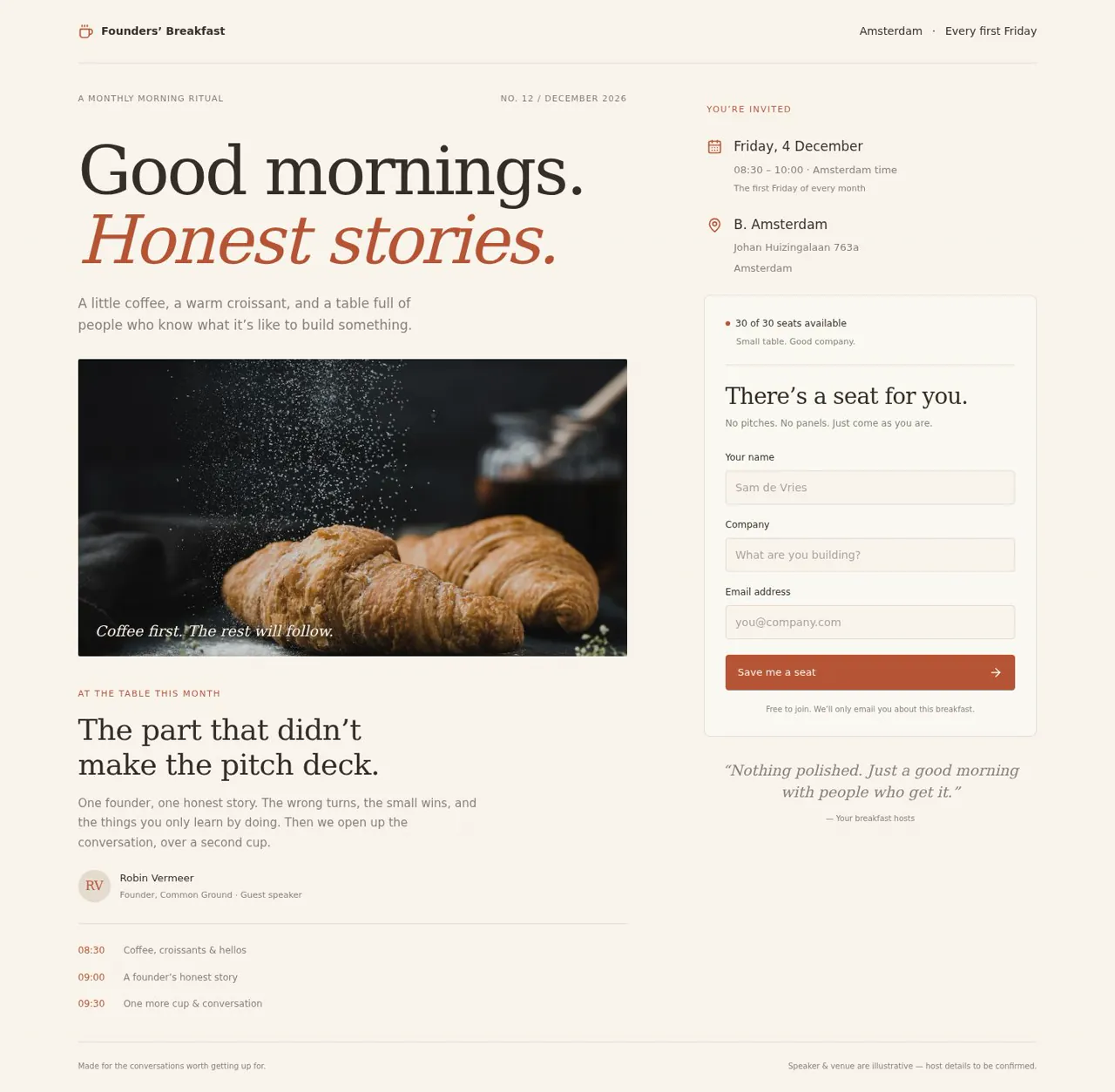
- Pass: The page shows date, speaker, venue and how many seats are left, with at least one seat open · Signed out, the page showed Friday 4 December 2026, speaker Robin Vermeer, venue B. Amsterdam and '30 of 30 seats available'.
- Pass: A signed-out visitor RSVPs with name and company, sees a confirmation and the seats left go down by one · Signed out, entered Alex Morgan and Morning Labs and clicked Save me a seat; a confirmation appeared and seats went from 30 to 29.
- Not checked: The guest receives a confirmation email for their RSVP · After the RSVP, the page said a confirmation email was on its way, but there is no inbox to see it arrive.
- Pass: Once the seats are full, the next RSVP is told they are on the waitlist · The organiser set seats to 0; the next RSVP said 'You’re on the waitlist, Jamie', and the organiser saw 1 on the waitlist.
- Pass: After the organiser raises the number of seats again, the page shows at least one seat open · The organiser raised seats from 0 to 2; the page showed '2 of 2 seats available' and the RSVP form.
- Pass: The organiser sees the guest list including the newest guest · After Nora Latest of Morning Labs RSVPed, the organiser's guest list showed her as Confirmed after a reload.
- Pass: A signed-out visitor or a signed-in non-organiser cannot see the guest list · Signed out, opening the guest list went to sign-in; a signed-in non-organiser got 'No access'.
- Pass: A visitor's RSVP lowers the seats left and appears in the organiser's guest list · An RSVP took seats from 30 to 29 and showed in the organiser's guest list as Confirmed after a reload.
Run
- Run: 11 Nov 2026 · vibe prompts
- Builder: the Framer 4 agent on GPT 6.1 Sol, in a new project
- Customer: an AI agent playing the owner of Founders' Breakfast, writing in the Tweak style
- Agent steps: 54 tool steps
- Prompt limit: 40 per app
- Cost: $1.12 for the builder, $0.12 for the judge
- Judge: an AI agent that tried each check in the live preview with a browser, signed in with each test account
Event RSVP
RSVPs, seat cap, waitlist and guest list work; the confirmation email could not be seen arriving.
- Result: Fail
- Checks: 7 of 8 pass, 1 not checked
- Prompts: 4
- Time: 8m2s in total
- Spent: $1.24
Prompt 1 of 4
I'd like a welcoming page for our Founders' Breakfast in Amsterdam, which we host every first Friday: coffee, croissants and one founder sharing an honest story, with around 30 seats. Make it feel like an invitation from a friend—warm, a little editorial, with morning-light colours, like the nicer Luma event pages. Show the upcoming date, speaker, venue and how many seats are still available. Visitors should be able to RSVP with their name and company without signing in, then see a clear confirmation and receive a confirmation email. Ask for their email address too so that can happen. Once someone reserves a seat, the number available should go down by one. If you include sample guests, please leave seats open so a new visitor can actually book one.
Created Founders’ Breakfast with guest RSVPs, live availability, and
- Pass: The page shows date, speaker, venue and how many seats are left, with at least one seat open · Signed out, the page showed Friday 4 December 2026, speaker Robin Vermeer, venue B. Amsterdam and '30 of 30 seats available'.
- Pass: A signed-out visitor RSVPs with name and company, sees a confirmation and the seats left go down by one · Signed out, entered Alex Morgan and Morning Labs and clicked Save me a seat; a confirmation appeared and seats went from 30 to 29.
- Not checked: The guest receives a confirmation email for their RSVP · After the RSVP, the page said a confirmation email was on its way, but there is no inbox to see it arrive.
Prompt 2 of 4
Please add a waitlist for when the breakfast fills up. Once all the seats are taken, anyone else who RSVPs should be clearly told they’re on the waitlist, rather than that they have a confirmed seat. As the organiser, I’d like to change the seat limit privately. I should be able to lower it to the number of confirmed guests to mark the event as full, then raise it again and have the page show the newly available seats.
Added explicit waitlist confirmations and emails when full.
- Pass: Once the seats are full, the next RSVP is told they are on the waitlist · The organiser set seats to 0; the next RSVP said 'You’re on the waitlist, Jamie', and the organiser saw 1 on the waitlist.
- Pass: After the organiser raises the number of seats again, the page shows at least one seat open · The organiser raised seats from 0 to 2; the page showed '2 of 2 seats available' and the RSVP form.
Prompt 3 of 4
Could you add a private guest list to my organiser area so I can see everyone who has RSVP’d, including the latest arrivals? I’d like to see their names and companies, with a clear distinction between confirmed guests and people on the waitlist. Please make sure only I, as the organiser, can view it—not visitors who are signed out or anyone signed in with a different account.
Added a live guest list with names, companies, and clear Confirmed or
Prompt 4 of 4
The guest list is still locked for the organiser. I RSVP’d as Nora Latest from Morning Labs and got a reserved-seat confirmation, but when I signed in with my organiser account, admin@example.com, and opened the organiser area—even after reloading—I only saw “Organiser access only.” Please fix access for my organiser account so I can see the guest list, including Nora and any newer RSVPs, with names, companies, and clear confirmed or waitlist labels. Keep it private: signed-out visitors and other signed-in people who aren’t organisers must not be able to see it.
admin@example.com can now open the organiser guest list, showing
- Pass: The organiser sees the guest list including the newest guest · After Nora Latest of Morning Labs RSVPed, the organiser's guest list showed her as Confirmed after a reload.
- Pass: A signed-out visitor or a signed-in non-organiser cannot see the guest list · Signed out, opening the guest list went to sign-in; a signed-in non-organiser got 'No access'.
- Pass: A visitor's RSVP lowers the seats left and appears in the organiser's guest list · An RSVP took seats from 30 to 29 and showed in the organiser's guest list as Confirmed after a reload.
Event RSVP
RSVPs, seat cap, waitlist and guest list work; the confirmation email could not be seen arriving.
- Result: Fail
- Checks: 7 of 8 pass, 1 not checked
- Prompts: 4
- Time: 8m2s in total
- Spent: $1.24
Event page with RSVPs and waitlist
Test accounts:
- Admin: admin@example.com
- Member: member@example.com
Founders' Breakfast is the invitation page for a small monthly breakfast in London. On the first Friday of every month, about 30 founders meet early for coffee, croissants and one founder telling an honest story about building their company. The page shows the next breakfast's date, speaker and venue, takes RSVPs with a seat limit and a waitlist, and sends every guest a confirmation email. It should feel like an invitation from a friend: warm, a little editorial, in morning-light colours, like the nicer event pages on Luma, but with its own brand.
The app has two roles, plus anyone else who happens to have an account.
- Guests: signed-out visitors. They read about the next breakfast, RSVP with their name, company and email, get a seat or a place on the waitlist, receive emails about it, and can give their seat back through a link. They never need an account.
- The organiser: the admin (the app's admin account). They sign in to a private organiser area where they see the guest list, change the number of seats, edit the breakfast's details and plan the next editions.
- Anyone else with an account: (for example the member test user) sees only what guests see, and is refused in the organiser area.
On first open, the page shows the next breakfast with its speaker and venue, 30 seats of which 18 are taken by sample guests (so 12 are open), and the following month's breakfast already planned.
Nothing is broken and everything works. Every button, link and form does what it says with real data. No page shows placeholder text, sample images, "coming soon", "not set up yet", lorem ipsum or a link to nowhere.
These are not part of Founders' Breakfast: tickets or payments, guest accounts, several events on the same day, a public chat or comments, recordings of talks, speaker applications, sponsor pages, a public list of who's coming, an archive of past breakfasts, check-in at the door, exporting the guest list, reminder emails, and newsletters beyond the emails described here.
Brand and visual direction
Founders' Breakfast is for founders and early team members of young London companies: busy people, tired of networking events, who come for one honest story and a real conversation before work. Most open the invitation on their phone from a WhatsApp group. The page tells them in one glance when, where and who, and lets them take a seat in under a minute. Name and voice: The product is called Founders' Breakfast, with the line "One founder, one honest story. First Friday of the month, London." The copy sounds like a friend who hosts well: warm, specific and brief: "Save me a seat", "You're coming", "Give my seat back", "Doors open at 07:45". It uses no exclamation marks, emoji, or hype such as "exclusive", "don't miss out", "supercharge" or "unleash". Dates are written out ("Friday 4 December") with 24-hour times. Visual direction: A printed invitation on a sunny kitchen table: warm paper, a big serif date, plenty of room.
- Colour: a butter-cream page (about #FBF4E6), oat cards and sections (about #F3E7D3), espresso-brown text (about #2B211A) and hairline borders in warm sand (about #E2D3BA). One accent, a warm honey (about #E3A33B) with espresso text on it, is used only for the main action on a screen (Save me a seat, Join the waitlist, Save) and focus rings. A soft apricot tint (about #F7DCC2) marks the seats-left line and the confirmation. No gradients, glows, glass effects or purple-blue palettes.
- Type: Young Serif for the title, the large date and headings, with DM Sans for everything else. The date is the biggest thing on the page. Body text is 17 px; counts and times use tabular figures.
- Shape: 12 px corners on cards, a pill for the seats-left badge, 1 px borders instead of shadows, generous margins.
- Layout: up to about 1120 px wide. On desktop the invitation fills about 7 of 12 columns, with a sticky RSVP card on the right; on tablet the card sits under the date; on phone everything is one column, with a slim bottom bar showing seats left and "Save me a seat". The header holds the wordmark and, for the organiser, Organiser.
- Imagery: the speaker's real photo, uploaded by the organiser, in a warm duotone circle, or else a large serif monogram on oat, never a stock face. A venue photo when the organiser uploads one, and an OpenStreetMap map. No stock photos, 3D shapes, AI illustrations or decorative icons beyond a small coffee-cup mark in the wordmark.
- Motion: short fades (150 to 250 ms) when the RSVP card turns into the confirmation; nothing bounces; reduced motion turns it off.
- Every page works at 390 px wide with no horizontal scrolling, and every control is usable by keyboard with a visible focus ring. Fields have visible labels and errors in words next to them.
Pages beyond the product: The footer links to real pages with real content: About (who hosts it, why it exists and the house rules: what is said at breakfast stays at breakfast), Venue (address, how to get there by bike, Tube and Overground, where to park a bike) and Privacy (what is stored about guests and when it is deleted). A branded not-found page says "This page isn't on the menu" and links back to the next breakfast.
Checks:
- Every page shows the Founders' Breakfast wordmark and the same header and footer, and every footer link opens a page with real content, not a placeholder
- The design follows the direction above: butter-cream background, espresso text, one honey accent for main actions, a large Young Serif date with DM Sans body text, rounded cards with hairline borders, and no gradients or stock imagery
- The event page and the RSVP form have no horizontal scrolling at phone width, and the seats-left bar with "Save me a seat" stays reachable
- Opening a made-up address shows a branded not-found page with a link back to the next breakfast
Breakfasts: what Founders' Breakfast starts with
On first open, the app holds real-looking breakfasts so every screen has content. All dates are real first Fridays counted from today, and all times are London time (Europe/London). The next breakfast: On the next first Friday, 07:45 doors, 08:00 to 09:30. Speaker Robin Hale, co-founder of Cadence, a bike-repair subscription company, with the story title "We ran out of money twice" and a three-paragraph description of what she will talk about. Venue: Larkspur Café, 14 Fenwick Yard, Shoreditch, London E2 7QR, with its map. 30 seats, 18 confirmed sample guests and an empty waitlist, so 12 seats are open. The breakfast after that: The following first Friday, with its speaker and story already filled in (Priya Raman of Hue & Hand, "Firing my co-founder, who was also my best friend"), the same venue, 30 seats and RSVPs not yet open; the page mentions it as "Next month" with the date and speaker. Sample guests: The 18 confirmed guests have realistic names, real-sounding small London companies and emails at example domains that never receive mail (for example eva@lumenlabs.example). Two have a dietary note (vegan, gluten-free), and the guests RSVPed over the past two weeks, so the list sorts in a meaningful order.
Checks:
- On first open, the event page shows the next first Friday's date, Robin Hale as speaker, Larkspur Café as venue and "12 of 30 seats left"
- The organiser's guest list shows the 18 confirmed sample guests with names, companies and RSVP times, and an empty waitlist
- No breakfast, speaker or guest looks like filler: no "Test", "John Doe", lorem ipsum or repeated names
Guest: the event page
The home page is the next breakfast's invitation. The invitation: The date in large Young Serif ("Friday 4 December"), the time ("07:45 doors, 08:00 to 09:30"), the event name and its line. Then the speaker: photo or monogram, name, company, story title and description. Then "What to expect" in three short lines (coffee and croissants from 07:45, the story at 08:15, conversation until 09:30), and the venue with address, map and a "Directions" link that opens the visitor's map app. Seats left: The RSVP card shows "12 of 30 seats left", or "Full, join the waitlist" with how many are waiting. The count is always the seat limit minus confirmed guests, and it updates on open pages within a few seconds, without a reload. Add to calendar: Downloads a calendar file with the date, time, venue and a link back to the page. Next month: A small section names next month's date and speaker. No upcoming breakfast: If none is planned, the page says plainly that the next date has not been announced yet. This is a real state, not an error.
Checks:
- A signed-out visitor sees the date, time, speaker with story title, venue with map and directions, and the seats left
- Add to calendar downloads a calendar file with the right date, time and venue
- With the event page open in one window, an RSVP in another window lowers the seats left in the first window within a few seconds without reloading
Guest: RSVP and confirmation
The form: The RSVP card asks for:
- Name: required.
- Company: required, with the hint "Or what you're working on".
- Email: required, with the hint "For your confirmation and the link to give your seat back".
- Dietary needs: optional choices of vegetarian, vegan, gluten-free and lactose-free, plus a short free field.
A line under the form links to Privacy. The button says "Save me a seat". Validation: An empty required field or an email that is not a valid address is explained next to the field ("Add your email so we can send your confirmation"), and nothing typed is lost. Confirmation: After saving, the RSVP card turns into an apricot confirmation: "You're coming, Alex", the date, time and venue again, an Add to calendar link, and a note that a confirmation email is on its way to the address given. The seats left go down by one at once, here and on every open page. The last seat: Each seat goes to one guest only. If two people RSVP for the last seat at nearly the same moment, one gets the seat and the other is placed on the waitlist and told so honestly on screen and by email. The number of confirmed guests never goes above the seat limit. Twice with the same email: RSVPing again with an email that already has a seat says "You already have a seat for Friday 4 December" and sends the confirmation email again, rather than taking a second seat. The same email already on the waitlist is told its position. Confirmation email: The published app sends it from its own address (hello@ followed by the app's address on apps.framer.email), and it arrives in the guest's inbox within a minute. Subject: "You're coming to Founders' Breakfast on Friday 4 December". It greets the guest by first name, gives the date, doors and start time, the venue with address and a map link, the speaker and story title, the house rule, a calendar file attachment, and a "Give my seat back" link.
Checks:
- A signed-out visitor RSVPs with name, company and email, sees "You're coming" with the date and venue, and the seats left go down by one
- The confirmation email arrives in the guest's inbox with the date, time, venue, speaker, a calendar file and a working "Give my seat back" link
- Sending the form with an empty company or an invalid email shows a message next to each problem and keeps what was typed
- RSVPing again with the same email says the guest already has a seat and does not lower the seats left again
Guest: the waitlist
Joining: When every seat is taken, the RSVP card says "Full, join the waitlist", the form stays the same, and the button reads "Join the waitlist". After joining, the guest sees "You're on the waitlist, Jamie" with their position ("You're number 3"), and that they will get an email the moment a seat opens. They never see wording that suggests they have a seat. Waitlist email: Subject: "You're on the waitlist for Founders' Breakfast, Friday 4 December". It gives their position, explains that seats are offered in the order people joined, and has a "Leave the waitlist" link. Getting a seat: When a seat opens (a guest gives theirs back, the organiser removes a guest or raises the seat limit), the first person on the waitlist gets it automatically, in the order people joined, and receives "A seat opened up: you're coming on Friday 4 December", with everything a normal confirmation contains. Everyone behind them moves up one place. Before the breakfast: RSVPs and waitlist moves close at 20:00 the evening before. After that the RSVP card says RSVPs are closed and shows the venue for those who are coming.
Checks:
- Once the seats are full, the next signed-out RSVP is told "You're on the waitlist" with their position, and the seats left stay at zero
- The waitlisted guest receives the waitlist email with their position and a working leave link
- When a confirmed guest gives their seat back, the first person on the waitlist becomes confirmed and receives the "A seat opened up" email
Guest: giving a seat back
The "Give my seat back" link in the confirmation email opens a page with the breakfast's date and a single "Give my seat back" button, with "Keep my seat" next to it. Confirming shows "Your seat is free for someone else. Thanks for letting us know", sends a short email saying so, and frees the seat: the first person on the waitlist gets it, or the seats left go up by one if nobody is waiting. "Leave the waitlist" works the same way for waitlisted guests. Opening a link for a seat already given back, or after the breakfast, says so plainly. Each link is private and unguessable and only acts on its own RSVP.
Checks:
- Using "Give my seat back" from the confirmation email frees the seat, and with no waitlist the seats left go up by one on the event page
- Opening the same link again says the seat was already given back, without an error
Organiser: signing in and access
A small "Organiser" link in the footer leads to the app's sign-in. The organiser signs in with the admin account and lands on the organiser area for the next breakfast, with three parts: Guests, Seats and Breakfasts (editing this and future editions). Every part is open only to the admin account. A signed-out visitor who opens any organiser address is sent to sign-in. A signed-in account that is not the admin, such as the member test user, sees "This page is for the organiser" with a link back to the invitation, and no guest names, companies, emails, counts by name or dietary notes appear on the page or in what it loads. Every organiser action (changing seats, removing a guest, editing, emailing guests) is refused for anyone but the admin, even when the request is sent directly.
Checks:
- The admin signs in and opens the organiser area with Guests, Seats and Breakfasts
- A signed-out visitor opening the guest list's address is sent to sign-in and sees no guest details
- The member, signed in, opening the guest list's address sees "This page is for the organiser" and no guest details
Organiser: the guest list
The list: Guests shows everyone who RSVPed for the selected breakfast (the next one by default) in two labelled groups, Confirmed and Waitlist, with counts at the top: "18 confirmed of 30 seats, 0 waiting". Each row shows name, company, email, dietary needs and when they RSVPed, newest first; the waitlist shows position numbers. A new RSVP appears without a reload. An empty breakfast says "No one has RSVPed yet"; an empty waitlist says "Nobody is waiting". Search: A search box finds guests by name, company or email. Removing a guest: After confirming, with the choice to email them a kind note. A removed confirmed guest's seat goes to the first person waiting.
Checks:
- The admin sees the guest list split into Confirmed and Waitlist, with names, companies, emails, dietary needs and RSVP times, and the counts at the top
- A signed-out visitor's new RSVP appears in the admin's guest list as Confirmed, without the admin reloading
- A waitlisted guest appears under Waitlist with their position, not under Confirmed
- Removing a confirmed guest while someone is waiting moves the first waiting guest to Confirmed
Organiser: seats and capacity
Seats shows the current seat limit with a large number field and plus and minus buttons, and next to it the confirmed and waiting counts. Lowering: The limit can be lowered to the number of confirmed guests, which makes the breakfast full: the event page then says "Full, join the waitlist". Lowering it below the number of confirmed guests is refused with a clear message ("18 guests already have a seat. To go lower, remove guests first"), so nobody loses a seat by accident. Raising: Raising the limit first gives the new seats to people on the waitlist, in order, and each of them receives the "A seat opened up" email. Any seats left over show as open on the event page at once, including on pages already open. Closing and opening RSVPs: A switch closes RSVPs early (the event page then says RSVPs are closed) and opens them again.
Checks:
- Setting the limit to the number of confirmed guests makes the event page say it is full, and the next RSVP goes to the waitlist
- Lowering the limit below the number of confirmed guests is refused with a message, and the limit stays as it was
- Raising the limit by more than the number of people waiting moves every waiting guest to Confirmed, and the event page shows the remaining seats open
- Closing RSVPs makes the event page say RSVPs are closed, and opening them again brings the form back
Organiser: editing breakfasts and planning ahead
Breakfasts lists upcoming and past editions. For each, the organiser edits the date (first Fridays suggested), times, speaker, company, story title and description, speaker and venue photos (JPG or PNG up to 10 MB, cropped to the shapes shown), venue and address, and seat limit; changes appear on the event page at once. "Plan a breakfast" creates the next edition on the next free first Friday with the same venue and 30 seats. RSVPs open when the previous breakfast ends, or earlier if the organiser chooses. When the date, time or venue of a breakfast with guests changes, the organiser is offered to email all guests the new details before saving. Empty required fields, an end before the start, or a past date are refused with a message next to the field.
Checks:
- Editing the speaker's story title changes it on the event page right away for a signed-out visitor
- Changing the venue of a breakfast with guests offers to email them, and choosing to do so sends the confirmed guests an email with the new venue
- Plan a breakfast creates the next edition on the next free first Friday, and it appears as "Next month" on the event page
Speed and findability
The invitation is opened from chat apps on phones, often on mobile data. The date, speaker, venue and seats left appear with the page, without waiting for scripts, and photos are resized and keep their space, so nothing jumps. Every public page has its own title and description. The event page is titled "Founders' Breakfast, Friday 4 December: Robin Hale, We ran out of money twice", and pasting its link into WhatsApp, Slack or LinkedIn shows the title, date and a share image with the date and speaker in the brand's colours. The organiser area and the give-back pages are hidden from search engines.
Checks:
- The event page shows the date, speaker, venue and seats left within about 2 seconds, and nothing shifts when the photos arrive
- The event page has a title with the date and speaker, a description and a share image, and the organiser area is not shown to search engines
Everything works
These checks apply to every screen above, for guests, the organiser and the member. The number before each check is its weight: 3 means the app fails if the check fails, 2 a serious defect, 1 a defect worth noting.
For every app:
- Must pass: Every feature this spec describes is there, and each fix the agent claims holds when the original steps are repeated
- Serious: At phone (390 px), tablet (810 px) and desktop (1,200 px and up), the event page, the RSVP card and its confirmation, the give-back and leave pages, About, Venue, Privacy and the organiser's Guests, Seats and Breakfasts show nothing cut off, no sideways scrolling, a reachable header, the seats-left bar on a phone, and inputs of at least 16 px
- Serious: Footer links (About, Venue, Privacy, Organiser), Directions, Add to calendar and the emails' "Give my seat back" and "Leave the waitlist" links go to the right place; reloading the guest list or a give-back page on the live address works; a made-up address shows "This page isn't on the menu"; Back works
- Minor: The speaker's photo in its duotone circle (or the monogram), the venue photo and the map load at the right shape without stretching, and pasting the event page's live link into WhatsApp or Slack shows its title, date and share image with the date and speaker, not a builder default
- Serious: Later work did not break earlier work: after the waitlist and the organiser area are built, RSVPs, confirmation emails, the seats-left count, the 18 sample guests and next month's breakfast still work and are unchanged
- Minor: After each prompt, the agent's reply says honestly what changed and what it could not verify (including anything that still needs a key or account), is never empty, never presents preview-only as done, and never claims a fix that is not there in the live app
For this app:
- Must pass: Every flow works end to end with fresh input, checked where it lands: a guest's RSVP takes one of the 12 open seats (the sample guests never block it), appears as Confirmed in the organiser's guest list and sends the confirmation to their inbox; a seat given back goes to the first waiting guest, who is emailed; seat and breakfast edits show on the event page
- Must pass: RSVPs, waitlist positions, given-back seats, removed guests, the seat limit, the RSVPs-closed switch, breakfast edits and planned breakfasts stay as saved after a reload, in another browser, on the event page and in the organiser's guest list
- Must pass: Only the admin reaches Guests, Seats and Breakfasts: a signed-out visitor is sent to sign-in, the member sees "This page is for the organiser", neither gets guest names, companies, emails or dietary notes in the page or what it loads, or can change seats, remove a guest, edit or email guests by sending the request directly; a give-back link with its code changed acts on no other guest's RSVP
- Must pass: On the published address, the organiser signs in from the footer's Organiser link, reloads the guest list, signs out and resets their password, with every link and redirect on the live domain, and a guest RSVPs, joins the waitlist and gives a seat back without any screen asking them to sign in or create an account
- Serious: The confirmation, waitlist, "A seat opened up", seat-given-back, removal note and venue-change emails each arrive in a real inbox, not spam, from hello@ the app's apps.framer.email address, greeting the guest by first name with the date written out, times in London time, the venue and speaker, the calendar file and working give-back or leave links, in plain text that reads cleanly
- Serious: The published app behaves like the preview: emails are really sent, not logged, seats left update on open pages, RSVPs close at 20:00 the evening before, and no live page mentions "preview"
- Serious: Empty, loading and error states are clear and in plain words: no breakfast announced yet, "No one has RSVPed yet", "Nobody is waiting", RSVPs closed, a give-back link already used or past the breakfast, and an RSVP that fails to save keeping what was typed, with no technical or setup text
- Serious: Speaker and venue photos in JPG or PNG up to 10 MB upload and show cropped on the event page, other types and larger files are refused with a clear message, and the Add to calendar file and the email's calendar attachment open in a calendar app with the right date, London time and venue
- Serious: As a signed-out visitor, the page source and network requests contain no secret keys and no guest names, companies, emails or dietary notes, and the RSVP form and footer link to the Privacy page
- Minor: With the event page open in two browsers, an RSVP, a seat given back or the organiser's seat change updates the seats left in the other within a few seconds, and a new RSVP appears in the organiser's open guest list without a reload
- Minor: For a breakfast set for tomorrow, RSVPs and waitlist moves close at 20:00 London time this evening: the RSVP card then says RSVPs are closed and a seat given back no longer moves a waiting guest
- Minor: The RSVP form refuses an empty name or company and a malformed email with a message next to the field, keeping what was typed; the same email twice gets "You already have a seat" or its waitlist position and no second seat; a double-click on "Save me a seat" makes one RSVP; two guests racing for the last seat leave one confirmed and one waitlisted; Breakfasts refuses empty fields, an end before the start and a past date
- Minor: The guest list search finds a guest by full name, by part of a company name and by email, and says so when nothing matches
Done when
Checks:
- A signed-out visitor sees the next breakfast's date, speaker, venue and seats left, RSVPs with name, company and email, sees a confirmation, the seats left go down by one, and the confirmation email arrives
- When the seats are full, the next RSVP joins the waitlist with a position, and a seat given back goes to the first person waiting, who is emailed
- The organiser can lower the seat limit to fill the breakfast and raise it again so seats open, and sees every guest, confirmed or waiting, in a private list that a signed-out visitor and the member cannot see
- Every page feels like a warm, editorial invitation in Founders' Breakfast's own brand, works on a phone, and nowhere shows a placeholder, dead link or "not set up" state
Event RSVP
RSVPs, seat cap, waitlist and guest list work; the confirmation email could not be seen arriving.
- Result: Fail
- Checks: 7 of 8 pass, 1 not checked
- Prompts: 4
- Time: 8m2s in total
- Spent: $1.24
Founders' Breakfast: the simulated customer
An AI agent plays the owner of Founders' Breakfast and writes every prompt. It reads the spec and this file, never the Framer 4 agent's code.
- Style: Tweak.
Persona and why it fits
Tweak. One event page with a few visible states (seats left, full, waitlist). A Tweak user pokes at each state with one-liners.
Prompt length and tone
- Length: 4 to 20 words, typically 6 to 10. One idea per prompt.
- Tone: Casual and terse, often lowercase, no greeting, the occasional typo. Names what they see, not how to fix it.
- Language: English only.
Example prompts for this app:
- "invite page for our founders breakfast in london, first friday of the month, with rsvp"
- "seats left doesn't go down after i rsvp"
- "when it's full people should go on a waitlist"
Style mix
Tweak for 76% of prompts, Describe 18%, Specify 5%, Brief 0.5%.
Switches come early and cluster around breakage: a failed fix or an unrequested change makes the next prompt likelier to be longer and more exact.
How they choose the next prompt
One thing per prompt, the most visible one: a broken control or page first, then a missing feature from the spec, then something that looks off. They name it in a few words and let the agent work out the fix. Order of attention for this app:
- Anything broken: a control that does nothing, a page that errors, a broken image or link, a layout broken on phone, a claimed change that isn't there.
- Date, speaker, venue and seats left on the page.
- RSVP with name, company and email, and the confirmation email.
- The waitlist, giving a seat back through the link, and the organiser-only guest list and seat limit.
- Everything else in the spec, including the brand and copy rules, in spec order.
How they react to breakage
- Reports it in one line, close to what they saw: "still doesn't open", "pic is stretched on my phone".
- If the same problem survives two fixes, they switch to a Describe-style prompt that says where it happens and what they expected (the 18% Describe share mostly comes from here).
- If an edit changed something they didn't ask for, they send one guarded Specify-style order ("only fix X, change nothing else"), then go back to short lines.
- If the agent says it's fixed and it isn't, they say so plainly: "you said it was fixed, it isn't".
Stop rule
- They keep prompting until the judge says every check in the spec is met, or until prompt 40, whichever comes first.
- The persona shapes how they prompt and react, never when they stop: no giving up, no stopping early because it looks good enough.
- The judge also grades whether the agent's replies are honest (claimed changes match the app), so the simulated user reports false claims as they see them and doesn't take a claim on trust.