Client portal
Every check passed: private projects, uploads, approvals, invoices and feedback.
- Result: Pass
- Checks: 8 of 8 pass
- Prompts: 3; every check passed after prompt 3
- Time: 8m59s in total
- Spent: $1.71
Checks
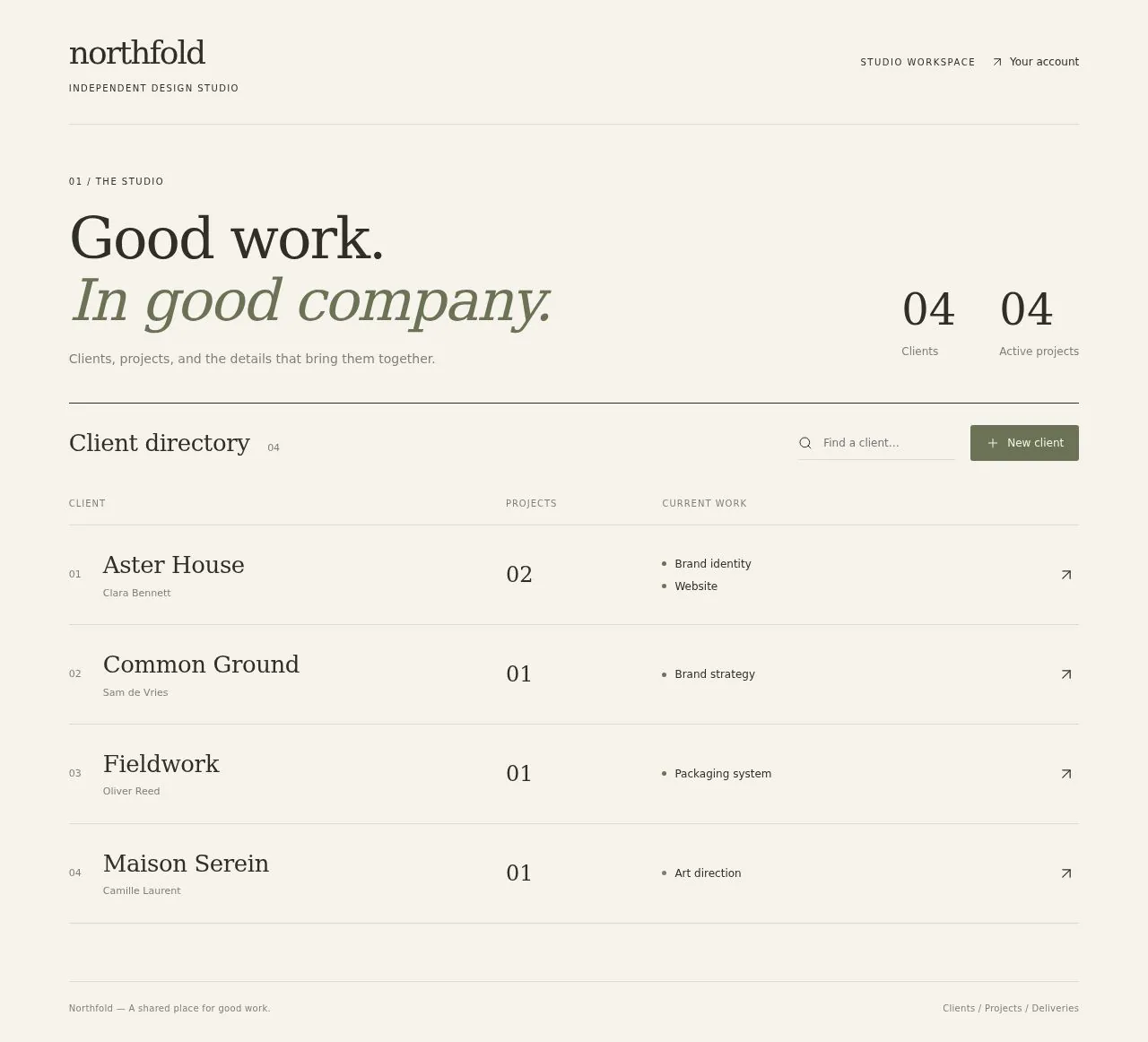
- Pass: The admin sees a list of clients and their projects and can add a client · The admin saw clients and their projects, clicked New client, added Paper Lantern Studio, and it stayed after a reload.
- Pass: The admin uploads a file to a client's project and it shows on that project · The admin uploaded picture.jpg to Aster House's Brand identity project; Delivered files showed 01 with its name and size after a reload.
- Pass: A signed-in client sees only their own projects, or an empty list when they have none · A member given access to Aster House saw only its two projects; a second member saw Projects 00 and an empty state.
- Pass: A client cannot open another client's project, even by typing its address · A second member opened the Aster House project by address and saw 'This project isn’t available', with no details.
- Pass: A client sees the invoices for their projects · The admin created invoice NF-101 for €1,250; the member saw it on their project with its due date and Sent status.
- Pass: A client approves a delivered file and the agency sees it as approved · The member clicked approve on picture.jpg; the admin's project then showed the file Approved, by Member.
- Pass: A client leaves feedback on a project and it stays after a reload · The member sent feedback on the project; it was still there after a reload, and the admin saw it too.
- Pass: A file the agency uploads for a client can be approved by that client and not opened by any other client · The member approved the uploaded picture.jpg; a second member opening the project got 'isn’t available' and No access, with no file shown.
Run
- Run: 11 Nov 2026 · vibe prompts
- Builder: the Framer 4 agent on GPT 6.1 Sol, in a new project
- Customer: an AI agent playing Northfold's studio, writing in the Specify style
- Agent steps: 39 tool steps
- Prompt limit: 40 per app
- Cost: $1.57 for the builder, $0.14 for the judge
- Judge: an AI agent that tried each check in the live preview with a browser, signed in as the studio and as clients
Client portal
Every check passed: private projects, uploads, approvals, invoices and feedback.
- Result: Pass
- Checks: 8 of 8 pass
- Prompts: 3; every check passed after prompt 3
- Time: 8m59s in total
- Spent: $1.71
Prompt 1 of 3
I’d like to start with the agency workspace for Northfold. The three of us need a clear overview of our clients and their projects, with an easy way to add a new client. When we open a client’s project, we should be able to upload a delivered file and see it listed there afterward, so it’s clear which files belong to which project. Please make this feel like our studio rather than a generic dashboard: refined and editorial, with warm paper tones, thoughtful typography and the quiet polish of a nice hotel’s stationery.
Northfold’s workspace is ready, with shared clients, projects, and saved
- Pass: The admin sees a list of clients and their projects and can add a client · The admin saw clients and their projects, clicked New client, added Paper Lantern Studio, and it stayed after a reload.
- Pass: The admin uploads a file to a client's project and it shows on that project · The admin uploaded picture.jpg to Aster House's Brand identity project; Delivered files showed 01 with its name and size after a reload.
Prompt 2 of 3
Next, I’d like the client side of Northfold’s portal. When a client signs in, they should see only their own projects, with each project’s current status, delivered files and invoices easy to find. If they don’t have any projects yet, show a thoughtful empty state rather than sample projects. Their projects need to stay private: a client shouldn’t be able to open someone else’s project, even if they’re given or type in its address. Please carry through the same warm, editorial feel as our agency workspace.
The client portal now shows only assigned projects, their status,
- Pass: A signed-in client sees only their own projects, or an empty list when they have none · A member given access to Aster House saw only its two projects; a second member saw Projects 00 and an empty state.
- Pass: A client cannot open another client's project, even by typing its address · A second member opened the Aster House project by address and saw 'This project isn’t available', with no details.
- Pass: A client sees the invoices for their projects · The admin created invoice NF-101 for €1,250; the member saw it on their project with its due date and Sent status.
Prompt 3 of 3
Next, I’d like clients to be able to approve a delivered file from their project, with a clear confirmation so they know it’s done. When we open that project in the agency workspace, we should see which files they’ve approved. They also need a place to leave feedback on the project that we can read. Please keep their comments saved so they’re still there when they come back or reload the page, and carry through Northfold’s quiet, warm editorial feel.
Clients can now confirm file approvals and leave saved project feedback.
- Pass: A client approves a delivered file and the agency sees it as approved · The member clicked approve on picture.jpg; the admin's project then showed the file Approved, by Member.
- Pass: A client leaves feedback on a project and it stays after a reload · The member sent feedback on the project; it was still there after a reload, and the admin saw it too.
- Pass: A file the agency uploads for a client can be approved by that client and not opened by any other client · The member approved the uploaded picture.jpg; a second member opening the project got 'isn’t available' and No access, with no file shown.
Client portal
Every check passed: private projects, uploads, approvals, invoices and feedback.
- Result: Pass
- Checks: 8 of 8 pass
- Prompts: 3; every check passed after prompt 3
- Time: 8m59s in total
- Spent: $1.71
Client portal
Test accounts:
- Studio (Admin): admin@example.com
- Client contact (Member): member@example.com
- Not yet a contact (Second member): member.2@example.com
Northfold is a three-person branding studio that works with restaurants and hotels. Its clients are owners, not designers, and they keep emailing "where's the latest logo file?". The Northfold portal answers that question for good. Each client signs in and finds their own projects: where each one stands, the latest delivered files with their earlier versions, the invoices to pay, and a place to approve work or leave feedback. The studio adds clients, projects, files and invoices, and sees every approval, comment and payment as it happens. The portal feels like an extension of the studio, the way a good hotel's stationery feels, not like a project management tool.
The app has two roles.
- The studio: the app's admin account. It runs the agency workspace. It adds clients and their contacts, creates projects, moves them through stages, uploads delivered files and new versions, sends invoices, replies to feedback, and sees what each client has approved and paid.
- Clients: the contacts the studio has added by email. They sign in with the app's built-in sign-in and see only the projects of the client they belong to. They download files, approve a file or ask for changes, leave feedback, and pay invoices by card. A person who signs in without being added as a contact sees a calm empty state and nothing else.
On first open, the portal holds 6 real-feeling hospitality clients with 11 projects, their delivered files, feedback, approvals and invoices, and member@example.com is a contact of one of them, Aster House.
Nothing is broken and everything works. Every button, link and form does what it says with real data. Files really upload and download, invoices are really paid with Stripe in test mode, and the emails the portal describes really arrive. No page shows placeholder text, sample images, "coming soon", "not set up yet", lorem ipsum or a link to nowhere.
These are not part of Northfold's portal: separate logins for each studio member, time tracking, proposals and contracts, client-side file uploads, real-time chat, a public portfolio, tasks and Gantt charts, comments drawn on top of images, archiving clients, editing feedback after sending, and filters or totals on the studio's invoice list.
Brand and visual direction
The portal is used by two kinds of people. The studio's three designers live in it every day and want it fast and orderly. The clients are owners and general managers of restaurants and small hotels, often on a phone between services. They are not designers, they do not know file formats, and they want to find "the logo for the menu printer" in one tap. Both should feel they are dealing with a careful, premium studio.
Name and voice: The portal carries the studio's own name, Northfold, with the line "Your projects with Northfold, in one place." The copy sounds like a thoughtful studio writing to a client: warm, short and exact. "Approve this file", "Ask for changes", "Download the latest", "Pay invoice NF-104". File labels speak in uses, not formats: "For print", "For web and social", "For your sign maker". The copy uses no exclamation marks, emoji, jargon such as "deliverables" or "assets", and no hype words such as "seamless", "supercharge" or "elevate".
Visual direction: The portal looks like fine hotel stationery: warm paper, ink, generous margins and a few precise rules.
- Colour: a warm paper background (about #F4EFE6), a slightly lighter card stock for panels (about #FAF7F1), dark ink text (about #1E1B18), warm grey hairlines (about #D8CFC2), and one accent, a deep ink navy (about #22365C), used only for the main action on a screen, links and focus rings. Statuses use muted tones that stay readable: a moss green for Approved and Paid, an ochre for Waiting on you, a soft brick for Overdue. There are no gradients, glows, glass effects or purple-blue palettes.
- Type: Cormorant Garamond for display headings, client names and project titles, and Work Sans for all interface text, labels and tables. Headings are large with tight spacing. Body text is 16 px. Amounts, dates and invoice numbers use tabular figures.
- Shape: small corner radii (2 to 4 px), 1 px hairline borders and thin horizontal rules instead of shadows. Panels look like cards laid on a desk, not floating tiles.
- Layout: a centred column with a maximum width of about 1120 px and wide margins. The studio's client list is a two-column layout on desktop (clients on the left, the selected client's projects on the right) and one column on tablet and phone. A client's project page has a main column for files and feedback and a narrow side column for status and invoices on desktop, stacked on phone with the latest files first.
- Imagery: only the real files the studio uploads, shown as thumbnails for images and PDFs, and a neutral typeset tile with the file type for other formats. Each client has a monogram in the studio's style. There are no stock photos, illustrations or decorative icons.
- Motion: short (150 to 200 ms) fades only. An approval confirmation appears in place and stays.
- Every page works at 390 px wide with no horizontal scrolling, buttons are at least 44 px tall on phone, and every control is usable by keyboard with a visible focus ring.
Pages beyond the product: The sign-in page is a quiet branded cover: the Northfold wordmark, the line, and Sign in. The footer links to real pages: How the portal works (for clients, in plain words), Contact the studio (the studio's email and phone), Privacy and Terms. A branded not-found page links back to the projects.
Checks:
- Every page shows the Northfold wordmark, the same header and footer, and every footer link opens a page with real content
- The design follows the direction above: warm paper background, dark ink text, one ink navy accent for main actions, Cormorant Garamond headings with Work Sans interface text, hairline borders and no gradients or stock imagery
- The client's projects page, a project page and the studio's client list have no horizontal scrolling at phone width, and their main actions stay reachable
- Opening a made-up address shows a branded not-found page with a way back to the projects
Clients and projects: what Northfold starts with
On first open, the portal holds the studio's real working state, so every screen has content.
- 6 clients: each a hospitality business with a monogram, a city and 1 to 3 contacts: Aster House (a 24-room hotel in Lisbon), Salt & Ember (a seafood restaurant in Brighton), Café Odile (a bakery café in Lyon), The Larder at Wren Hall (a country house restaurant), Pilot Coffee Bar and Hotel Mirabeau. member@example.com is a contact of Aster House, shown as Inês Duarte, General Manager.
- 11 projects: spread over the stages Discovery, Concepts, Refinement, Final files and Complete, for example "Brand identity" and "Menus and print" for Aster House, "Signage" for Salt & Ember, and "Packaging" for Café Odile. Each has a short brief, a start date, a target date and a stage history.
- About 40 delivered files: with real content: logo files in SVG, PNG and PDF, menu PDFs, colour palette sheets and brand guidelines. Several files have 2 or 3 versions, so "latest" and "earlier versions" show something real. Files are grouped into labelled sets such as "Primary logo", "Menu, spring" and "Brand guidelines".
- Approvals and feedback: about half the final-stage files are approved by a named contact, two are marked "Changes requested" with a comment, and each active project has 2 to 6 feedback messages between client and studio.
- 9 invoices: in euros with line items: some Paid, some Sent and due, one Overdue, one Draft. Aster House has one Sent invoice, NF-104 for €1,850, and one Paid.
member.2@example.com is not a contact of any client at the start, so they see the empty state until the studio adds them.
Checks:
- The studio's client list shows 6 clients with their projects, and each client has at least one contact
- Aster House's Brand identity project shows files with earlier versions, approvals, feedback and an invoice, all with real names, dates and amounts
- No file, client or message looks like filler: no repeated images, grey boxes, sample names or lorem ipsum
Studio: clients and contacts
The studio's home is the client list. Each client shows its monogram, name, city, number of active projects and a short line of what needs attention: "2 files waiting for approval", "Invoice NF-109 overdue", "New feedback". Clients with something needing attention sort to the top; the rest sort by name.
Adding a client: New client asks for the business name (required), city, a short note for the studio, and one or more contacts, each with a name, a role and an email (required, a valid address). Saving adds the client to the list at once. Each contact receives an invitation email from the portal with the subject "Northfold has shared your projects with you" and a Sign in link.
Editing: The studio can rename a client and add or remove contacts. Removing a contact takes away their access at once: the next page they open shows the empty state.
Access: A contact's email is their key. Whoever signs in with the app's built-in sign-in using that email sees that client's projects, whether they signed up before or after being added.
Checks:
- The admin adds a client with a contact and it appears in the client list and stays after a reload
- The admin adds member.2@example.com as a contact of a new client, and member.2 then signs in and sees that client's projects
- The invitation email arrives in the contact's inbox with the client's name and a working Sign in link
- Removing a contact means that person no longer sees the client's projects on their next page load
- Saving a client without a name, or a contact with a malformed email, is refused with a message next to the field
Studio: projects and stages
Opening a client shows its projects. New project asks for a title (required), a brief, a target date and the starting stage. Each project page in the agency workspace shows the stage as a row of five steps (Discovery, Concepts, Refinement, Final files, Complete) with the current one marked, the brief, the files, the feedback, the approvals and the invoices.
Moving a project to the next stage takes one click and an optional note to the client, such as "Concepts are ready for you to look at". The stage change appears in the project's history with the date, and the client sees the new stage on their next visit. A project marked Complete stays visible to the client with all its files.
Checks:
- The admin creates a project for a client and it shows under that client with its stage and target date
- Moving a project to the next stage updates its step row, adds an entry to its history, and the client sees the new stage
- The studio's overview shows, across all clients, which projects have files waiting for approval
Studio: delivering files
On a project, Upload files accepts files by dragging or choosing them: PNG, JPG, SVG, PDF, AI, EPS, ZIP, MP4 and Office documents, up to 200 MB each. The project page offers a small set of real sample files (a logo in SVG and PNG, and a menu PDF) so a file can be delivered even without one at hand. Each upload shows its progress and can be cancelled.
Sets and versions: Each upload goes into a file set, new or existing, with a plain label ("Primary logo") and a use ("For print", "For web and social", "For your sign maker"). Uploading into an existing set adds a new version: the set shows the newest as Latest, with its version number and date, and lists earlier versions below it, each still downloadable. An approval belongs to the version that was approved, so a new version starts as waiting.
Asking for approval: The studio marks a set as "Needs approval" or "For your files" (no approval needed). When files are delivered, the client's contacts receive one email per upload batch: "New files from Northfold: Primary logo", with the project, the file names and a link to the project.
Removing: The studio can rename a set, delete a version after confirming, and replace a mistaken upload.
Checks:
- The admin uploads a PNG to a client's project; it shows in the chosen set with its name, size, date and a thumbnail, and stays after a reload
- Uploading a second file into the same set makes it Latest, with the first listed as an earlier version that still downloads
- The client's contact receives the "New files from Northfold" email with the file names and a link that opens the project
- Uploading a file of an unsupported type or over 200 MB is refused with a plain message and nothing half-uploaded is left behind
Client: my projects
A signed-in client lands on My projects. At the top, a greeting with their name and the client's name: "Good afternoon, Inês. Here is everything for Aster House." Below, a short "Waiting on you" list (files to approve and invoices to pay), then the projects as cards with title, stage, target date and the date of the latest delivery.
Empty state: A person who is not a contact of any client sees a calm page that says Northfold has not shared a project with them yet, shows the email they are signed in with, and gives the studio's contact email. They never see sample projects or another client's data.
Privacy: A client sees only their own client's projects, files, feedback and invoices. Opening another client's project, file or invoice by typing or pasting its address shows "This project isn't available" with no title, file name or amount, and a link back to My projects. File download links only work for people with access.
Checks:
- member@example.com signs in and sees only Aster House's projects, with a Waiting on you list
- member.2@example.com, before being added to any client, sees the empty state with their email and no projects
- member.2 opening the address of an Aster House project, file or invoice sees "This project isn't available" and none of its details
- A signed-out visitor opening any project address is sent to sign in
Client: files, approvals and changes
A client's project page puts the files first, grouped by set. Each set shows its label and use, a thumbnail, the Latest version's date and a Download the latest button. Images and PDFs open in a large preview on the page. Earlier versions sit behind "Earlier versions" and download too.
Approving: A set marked Needs approval shows Approve this file and Ask for changes. Approve asks once: "Approve Primary logo, version 3? Northfold will treat this as final." After confirming, the set shows "Approved by Inês Duarte on 11 November 2026" in place, and the Waiting on you list shrinks. The approval cannot be undone by the client; they can still ask for changes on a later version.
Asking for changes: Ask for changes needs a short comment (required) and marks the version "Changes requested" with that comment, which also appears in the project's feedback.
The studio sees each approval and change request on its project page and in its overview, with the contact's name and time, and receives an email: "Aster House approved Primary logo" or "Aster House asked for changes to Primary logo", with the comment.
Checks:
- The client approves a delivered file after the confirmation step, and the set shows Approved with their name and date after a reload
- The admin's project page then shows that file as Approved by that client, and the approval email arrives in the studio's inbox
- Asking for changes without a comment is refused; with a comment, the file shows Changes requested and the comment appears in the feedback
- Uploading a new version after approval shows the new version as waiting, while the earlier approved version keeps its approval
- Download the latest downloads the newest version's real file
Client and studio: feedback
Each project has a Feedback section: a simple conversation between the client's contacts and the studio, newest at the bottom. Each message shows the author's name, whether they are the client or Northfold, and the time. The client writes in a plain text box (up to 2,000 characters) and sends. Messages stay after a reload and are visible to every contact of that client and to the studio. The studio replies from its project page.
When a client sends feedback, the studio receives an email with the message and a link to the project. When the studio replies, the client's contacts receive "Northfold replied on Brand identity" with the reply. An empty message cannot be sent.
Checks:
- The client leaves feedback on a project and it stays after a reload, and the admin sees it on the same project
- The admin replies and the client sees the reply under their message, and the reply email arrives in the client's inbox
- Sending an empty message is refused, and another client never sees this project's feedback
Client: invoices and payment
Invoices sit on each project's side column and together on an Invoices page. Each shows its number (NF-104), the project, issue date, due date, amount in euros and status: Sent, Paid or Overdue. Opening one shows the line items, the studio's details and a Download PDF button that downloads a real PDF of the invoice.
Paying: A Sent or Overdue invoice shows Pay invoice. It opens Stripe Checkout in test mode for exactly that amount. Paying with Stripe's test card 4242 4242 4242 4242 completes, and the client returns to the invoice. The invoice turns Paid only when Stripe's signed webhook confirms the payment; until then it says "Payment processing". Returning to the success page alone never marks anything paid. A cancelled checkout leaves the invoice unpaid with no error.
After payment, the client receives a receipt email ("Receipt for invoice NF-104") with the amount and date, and the studio receives "Aster House paid NF-104".
Checks:
- member@example.com sees invoice NF-104 on the Aster House project with its amount, due date and status, and Download PDF downloads a real PDF
- Paying NF-104 with the test card 4242 4242 4242 4242 completes, and the invoice shows Paid after Stripe confirms, for the client and the admin
- The receipt email arrives in the client's inbox with the amount and invoice number
- Cancelling the checkout leaves the invoice Sent, and a second client cannot open this invoice by address
Studio: invoices
The studio creates invoices from a project: a number (suggested as the next in sequence), line items with description and amount, a due date and a note. Saving keeps it as a Draft that clients cannot see. Send makes it visible to the client and emails the contacts "Invoice NF-110 from Northfold" with the amount, due date and a link. The studio's Invoices page lists every invoice with its client, amount and status. An invoice past its due date shows Overdue automatically. The studio can mark an invoice paid by bank transfer with a date, or void a Sent invoice with a reason.
Checks:
- The admin creates an invoice as a draft and the client cannot see it; after Send, the client sees it and the invoice email arrives
- When a client pays an invoice, the studio's Invoices page shows it as Paid
- A line item with no amount, or an invoice with no line items, cannot be sent
Speed
The portal is quick for a client on a phone between services. My projects shows its projects and Waiting on you list as soon as it loads. File thumbnails are resized previews, not the original files, and load lazily, with their space reserved so nothing jumps. A project with 40 files and 3 versions each opens without delay, and one request loads everything the page needs, not one per file. Large downloads start immediately and do not block the page.
Checks:
- My projects and a project page show their content within about 2 seconds on a phone connection
- Thumbnails are small resized images, and opening a project with many files does not shift the layout as they load
Everything works
These checks apply to every screen above, for the studio and clients. "Must pass" checks decide whether the app works; "Serious" and "Minor" ones are defects.
For every app:
- Must pass: Every feature this spec describes is there, and each fix the agent claims holds when the original steps are repeated
- Serious: At phone (390 px), tablet (810 px) and desktop (1,200 px and up), the sign-in cover, My projects, a project page, a file preview, an invoice, the Invoices page, the studio's client list, overview, upload and invoice forms show nothing cut off, no sideways scrolling, a reachable header and menu, buttons at least 44 px tall on phone, and inputs of at least 16 px
- Serious: Every project card, "Waiting on you" item, file set, invoice, footer link and invitation or email link goes to the right page; reloading a project, an invoice or the studio's client list on the live address works; a made-up address shows Northfold's not-found page; Back returns to My projects or the client list
- Minor: File thumbnails, image and PDF previews and client monograms load at the right shape without stretching, other formats show their typeset tile, and pasting the portal's live link into a chat app shows Northfold's title, not a builder default
- Serious: Later work did not break earlier work: after uploads, approvals, feedback and payments are built, the 6 starting clients, 11 projects, their files, versions, approvals and 9 invoices are still there and unchanged
- Minor: After each prompt, the agent's reply says honestly what changed and what it could not verify (including anything that still needs a key or account), is never empty, never presents preview-only as done, and never claims a fix that is not there in the live app
For this app:
- Must pass: Every flow works end to end with fresh input, checked where it lands: a client and contact the studio add can sign in and see their project; a file the studio uploads shows as Latest for the client; the client's approval, change request, feedback and payment each appear on the studio's project page and overview
- Must pass: Clients, contacts, removed contacts, projects, stage moves, file sets, versions, approvals, change requests, feedback, invoices sent, paid, voided or marked paid by transfer stay as saved after a reload and in another browser, for the studio and every contact of that client
- Must pass: member@example.com sees only Aster House; member.2@example.com, a removed contact and a signed-out visitor opening another client's project, file download, invoice or PDF by address see sign-in or "This project isn't available" with no names or amounts; a draft invoice is hidden from clients; only the admin reaches the studio's screens
- Must pass: On the published address, member.2@example.com signs up, confirms by email, signs in, reloads, signs out and resets their password, the invitation's Sign in link works, and every link and redirect, including Stripe's return, lands on the live domain
- Must pass: In Stripe test mode, Pay invoice for NF-104 charges exactly €1,850, the card 4242 4242 4242 4242 completes, and only Stripe's webhook turns it Paid for the client and the studio; a cancelled checkout, a declined card or opening the success address alone leaves it Sent
- Serious: The invitation, "New files from Northfold", approval and change-request, feedback and reply, invoice, receipt and "Aster House paid NF-104" emails each arrive in a real inbox from the portal's address, not in spam, with the client, project, file names, comment or amount the spec names and dates in the recipient's time zone
- Serious: The published app behaves like the preview: uploads, downloads, approvals, feedback, Stripe Checkout and its webhook, every email and the automatic Overdue status work there, and no live page mentions "preview"
- Serious: Empty states (a person with no client, a project with no files or feedback, nothing waiting on you), upload progress, "Payment processing" and errors are clear and in plain words, with no technical or setup text
- Serious: Uploads accept PNG, JPG, SVG, PDF, AI, EPS, ZIP, MP4 and Office files up to 200 MB with progress and cancel, refuse other types and larger files with a plain message, and every version and each invoice's Download PDF downloads a real file that opens
- Serious: As a signed-out visitor and as member.2@example.com, the page source and network requests contain no Stripe secret keys, no other client's projects, file links, feedback, invoices or contact emails; the sign-in page links to the Privacy page
- Minor: With a client's project open in the studio's browser, the client's approval, feedback or payment shows on the studio's project page and overview within a few seconds without a reload
- Minor: An invoice whose due date passes turns Overdue on its own, for the client and on the studio's Invoices page, without anyone editing it
- Minor: The client, contact, project, feedback, change-request and invoice forms refuse empty required fields, malformed emails, an empty message and an invoice without line items with clear messages, and sending twice in a row creates no duplicate client, message, approval or payment
Done when
Checks:
- The studio adds a client with a contact, creates a project and delivers a file, and the contact receives the email and finds the latest file in one tap
- The client approves a file or asks for changes, leaves feedback, and the studio sees each on the project, by email and in its overview
- The client pays an invoice with the Stripe test card, it turns Paid after Stripe confirms, and both sides receive their emails
- No client can see another client's projects, files, feedback or invoices by any route, and a person with no client sees a calm empty state
- Every page looks like Northfold's own stationery, works on a phone, and nowhere shows a placeholder, dead link or "not set up" state
Client portal
Every check passed: private projects, uploads, approvals, invoices and feedback.
- Result: Pass
- Checks: 8 of 8 pass
- Prompts: 3; every check passed after prompt 3
- Time: 8m59s in total
- Spent: $1.71
Northfold's studio: the simulated customer
An AI agent plays Northfold's studio and writes every prompt. It reads the spec and this file, never the Framer 4 agent's code.
- Style: Specify. Precise, numbered requests that name the page, the role and the exact result.
- Why this style: each client must see only their own projects, and that is the kind of scoped rule a Specify customer writes down.
- Length: 60 to 150 words, often a numbered list of 2 to 5 items.
- Tone: businesslike. Ends with a guard such as "Change nothing else." or "Only on this page."
- Language: English.
- Style mix: Specify for most prompts (81%), sometimes Tweak or Describe (8% each), rarely Brief (3%). In this run, all 5 prompts were Specify.
Example prompts
- "Add client accounts. 1) The studio can add a client and its contacts by email. 2) A signed-in contact sees only their own client's projects, files and invoices. 3) Opening another client's project address shows a not-allowed page. Change nothing else."
- "On the project page only: add Approve and Request changes buttons under each file. Request changes asks for a comment. Show the status on the file. Do not change the layout of the rest of the page."
- "pay button on the invoice does nothing"
How they pick the next prompt
They go through the spec in order and put everything missing or wrong in one section into one numbered request. In order of attention:
- Anything broken: a control that does nothing, a page that errors, a broken image or link, a layout broken on phone, a claimed change that isn't there.
- The studio adding clients, contacts, projects, files with versions, and invoices.
- Each client contact seeing only their own client's items, with other clients' addresses blocked.
- Approving files, leaving feedback and paying invoices by card.
- Everything else in the spec, including the brand and copy rules.
When something breaks
- Bug list: steps to reproduce, what happened, what should happen, and the scope guard again.
- Change outside the scope: they ask for that part to be restored, then send the original request with a stronger guard.
- Claimed fix that didn't land: they quote the agent's claim and list what is still wrong.
- Frustration: rare, about 1 session in 5, usually after a third failed attempt.
When they stop
- Stop rule: when the judge says every check in the spec passes, or after prompt 40, whichever comes first. They never stop early because it looks good enough.
- Honesty: they report the agent's false claims and don't take a claim on trust.