File converter
Every check passed, including the downloaded CSV.
- Result: Pass
- Checks: 5 of 5 pass
- Prompts: 3; every check passed after prompt 3
- Time: 2m38s in total
- Spent: $0.35
Checks
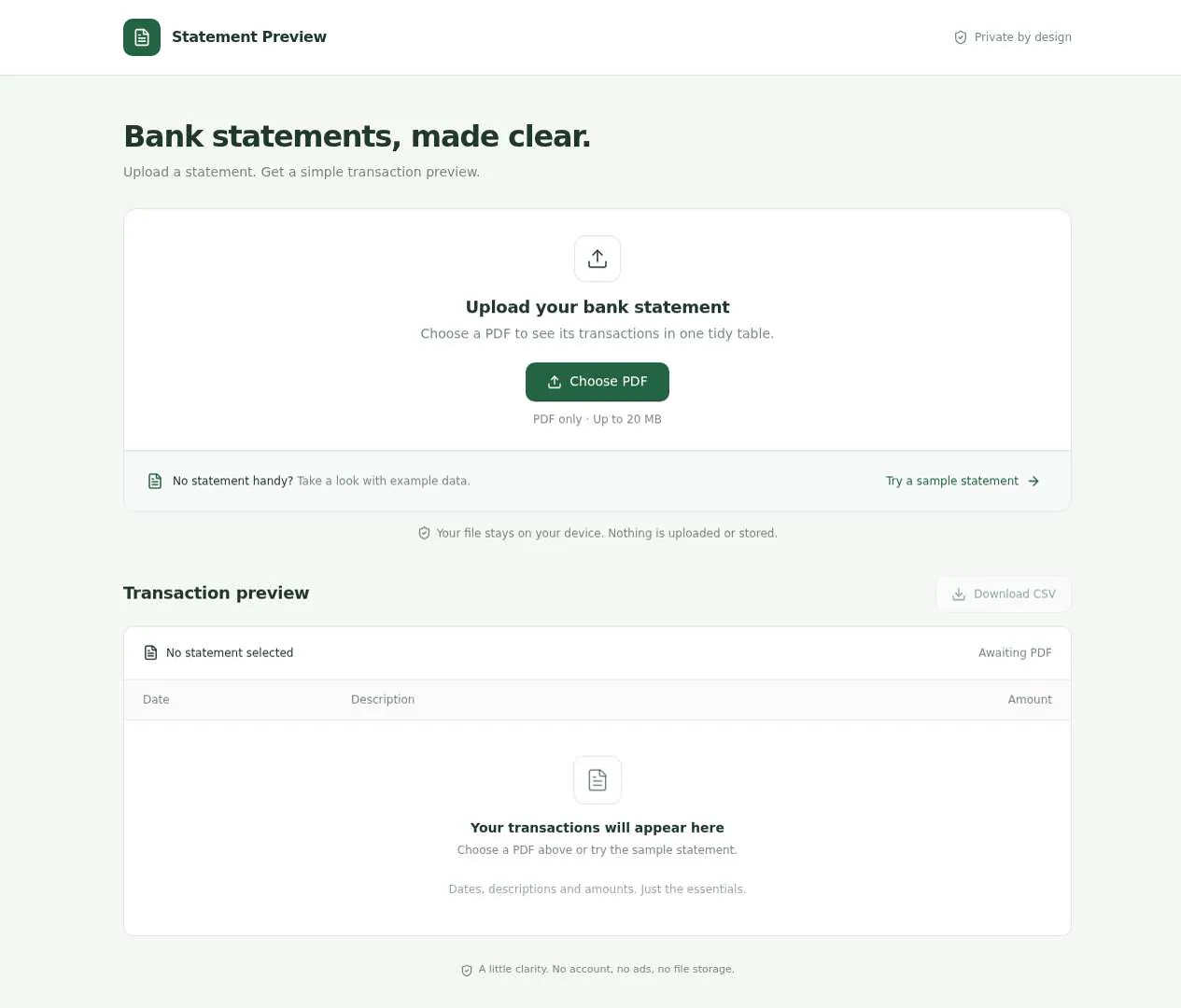
- Pass: The page offers a way to upload a PDF statement · Clicking Choose PDF opened a file picker labelled PDF only, up to 20 MB.
- Pass: Trying the sample statement shows a preview of rows, each with a date, a description and an amount · Clicked Try a sample statement; the preview showed eight rows with date, description and amount, e.g. 02 Nov 2026, Studio Noord, +1,850.00.
- Pass: Next to the preview there is a clearly labelled CSV download, and the preview shows the column headers the CSV will have · Clicked Download CSV next to the preview; sample-statement.csv had all eight rows and the same Date, Description, Amount headers.
- Pass: Uploading a photo instead of a statement shows a clear message and no made-up rows · Uploaded a photo with Choose PDF; the app said photos can't be read, cleared the rows and showed 'No transactions to preview'.
- Pass: The sample statement goes from preview to a CSV download, and a photo upload is refused with a clear message · The sample went from preview to a CSV with eight rows; a photo upload then got a clear message and Download CSV was disabled.
Run
- Run: 11 Nov 2026 · vibe prompts
- Builder: the Framer 4 agent on GPT 6.1 Sol, in a new project
- Customer: an AI agent playing the owner of Columnar, writing in the Describe style
- Agent steps: 20 tool steps
- Prompt limit: 40 per app
- Cost: $0.33 for the builder, $0.02 for the judge
- Judge: an AI agent that tried each check in the live preview with a browser, as a signed-out visitor
File converter
Every check passed, including the downloaded CSV.
- Result: Pass
- Checks: 5 of 5 pass
- Prompts: 3; every check passed after prompt 3
- Time: 2m38s in total
- Spent: $0.35
Prompt 1 of 3
I’m a freelance bookkeeper, and I’d like a tidy, trustworthy-looking tool for bank statements—more like Wise or Bunq than an ad-filled converter site. For now, let me upload a PDF statement and preview its transactions in a clear table with date, description, and amount. Please also include a “Try a sample statement” option that actually fills the preview with sample transactions, so someone can try it without having a file handy.
Built Statement Preview with private PDF processing and a working sample
- Pass: The page offers a way to upload a PDF statement · Clicking Choose PDF opened a file picker labelled PDF only, up to 20 MB.
- Pass: Trying the sample statement shows a preview of rows, each with a date, a description and an amount · Clicked Try a sample statement; the preview showed eight rows with date, description and amount, e.g. 02 Nov 2026, Studio Noord, +1,850.00.
Prompt 2 of 3
Please add a clearly labelled “Download CSV” button next to the transaction preview so I can save the transactions shown, including when I’m trying the sample statement. The preview should show the same column headers as the downloaded file: Date, Description, and Amount.
Added “Download CSV” beside the preview, including for sample transactions.
- Pass: Next to the preview there is a clearly labelled CSV download, and the preview shows the column headers the CSV will have · Clicked Download CSV next to the preview; sample-statement.csv had all eight rows and the same Date, Description, Amount headers.
Prompt 3 of 3
Please make sure files the tool can’t read get a clear, friendly explanation rather than a misleading transaction preview. If I upload a photo instead of a statement, tell me it can’t be read and ask me to upload a readable statement PDF. Don’t show any made-up transactions, and clear any rows left over from a previous upload or the sample so they can’t be mistaken for results from that file.
Unreadable files now get a friendly explanation asking for a readable statement PDF.
- Pass: Uploading a photo instead of a statement shows a clear message and no made-up rows · Uploaded a photo with Choose PDF; the app said photos can't be read, cleared the rows and showed 'No transactions to preview'.
- Pass: The sample statement goes from preview to a CSV download, and a photo upload is refused with a clear message · The sample went from preview to a CSV with eight rows; a photo upload then got a clear message and Download CSV was disabled.
File converter
Every check passed, including the downloaded CSV.
- Result: Pass
- Checks: 5 of 5 pass
- Prompts: 3; every check passed after prompt 3
- Time: 2m38s in total
- Spent: $0.35
Bank statement to CSV converter
Columnar turns bank statement PDFs into clean CSV files. A freelance bookkeeper whose clients send statements as PDFs uploads one, checks the transactions in a clear preview table (date, description, amount), and downloads a CSV that opens correctly in Excel, Google Sheets or their bookkeeping software. It reads statements with the app's built-in AI on the backend, then checks the result against the statement's own balances, so the bookkeeper can trust it without retyping a line.
The app has one role.
- Visitors: bookkeepers, accountants and small business owners. They try a sample statement, upload their own PDF, review the transactions and download the CSV. They never sign in.
On first open, Columnar offers three sample statements that fill the preview with real-looking transactions in one click, and that can also be downloaded as PDF files to try the upload itself.
Nothing is broken and everything works. Every button, link and form does what it says with real data. No page shows placeholder text, made-up transactions, "coming soon", "not set up yet", lorem ipsum, ads or a link to nowhere.
These are not part of Columnar: accounts or a saved history of conversions, connecting to bank accounts, categorising transactions, editing, adding or deleting rows in the preview, sorting or searching the preview, CSV format options (date format, decimal or column separator, Debit and Credit columns), uploading several statements at once or combining them, exporting to Excel, OFX or QIF files, invoices or receipts, ads, and any payment or paid plan.
Brand and visual direction
Columnar is for freelance bookkeepers and small accounting practices who handle many clients' statements every month. They are careful, busy, and wary of free converter sites full of ads and popups that might keep their clients' data. They want a tool that looks like a good fintech app (in the spirit of Wise or Monzo): calm, precise, and honest about what it did with their file. Name and voice: The tool is called Columnar, because it puts every line of a statement into the right column, with the line "Bank statement PDFs to clean CSV." The copy is plain and exact, like a good bank's app: "Upload a statement", "Try a sample", "12 transactions found", "Totals match the statement", "Download CSV". It explains what happens to files in one sentence wherever a file is involved. It uses no exclamation marks, emoji, or hype words such as "magic", "instantly", "AI-powered", "supercharge" or "unleash". Visual direction: Columnar looks like a well-made banking app: lots of white, clear tables, and one calm colour that signals trust.
- Colour: a white page (#FFFFFF) on a very light grey canvas (about #F5F6F4), near-black text (about #14171A), cool grey borders (about #E2E4E1), and one accent, a deep ledger teal (about #0E7A68), used only for the main action on a screen, the "Totals match" state and focus states. Money in is shown in the text colour with a plus sign and money out with a minus sign, never in red and green alone. Warnings use an amber (about #B7791F) with words. There are no gradients, glows, glass effects or purple-blue palettes.
- Type: Schibsted Grotesk for interface text and headings, and JetBrains Mono for amounts and dates, with tabular figures so amounts line up on the right. Body text is 15 to 16 px.
- Shape: medium radii (8 px) on panels and buttons, 1 px borders instead of heavy shadows, generous padding, and rows 44 px tall in the table.
- Layout: a centred working area with a maximum width of about 1120 px. On desktop, the transaction table takes most of the width with a narrow summary and download panel beside it. On tablet and phone, the summary sits above the table, and the table scrolls inside its own frame with the date and amount columns always visible. The header is slim: the Columnar wordmark, How it works and Privacy.
- Imagery: no photos or illustrations. The only visuals are the tool itself, small line icons for file states, and a thumbnail of the uploaded statement's first page.
- Motion: short (150 to 200 ms) fades, and a progress bar while reading. Nothing bounces.
- Every page works at 390 px wide with no horizontal scrolling outside the table frame, files can be chosen on a phone, and every control is usable by keyboard with a visible focus ring.
Pages beyond the product: The footer links to real pages with real content: How it works (what Columnar reads, how it checks totals, what the CSV contains), Privacy (files are kept for at most one hour and then deleted, nothing is used for anything else, and how to delete now), and Terms. A branded not-found page links back to the converter.
Checks:
- Every page shows the Columnar wordmark and the same header and footer, every footer link opens a page with real content, and no page shows an ad or popup
- The design follows the direction above: white panels on light grey, near-black text, one ledger teal accent, Schibsted Grotesk text with JetBrains Mono amounts that line up, 8 px radii, and no gradients or stock imagery
- The converter page has no horizontal scrolling at phone width outside the table, and Upload and Download CSV stay reachable
- Opening a made-up address shows a branded not-found page with a way back to the converter
Sample statements: what Columnar starts with
Columnar ships with three sample statements from a fictional bank, Meridian Bank, each clearly labelled "Sample" wherever it appears and made to look like a real statement exported from online banking. They are in English and in British pounds, with a fictional UK sort code and account number (such as sort code 40-19-27, account 31104821), dates written DD/MM/YYYY ("03/11/2026") and amounts such as "1,234.56".
- Freelancer, one month:: 1 page, account holder Okafor & Lin Design, November 2026, opening balance £2,340.15, 14 transactions (client payments, rent, software subscriptions, a tax payment), closing balance £3,118.42.
- Small business, one quarter:: 4 pages, 68 transactions over three months with a running balance column, page breaks in the middle of the list, and repeated page headers.
- Decimal-comma statement:: 2 pages exported in the number format used in much of Europe and Latin America, with dates such as "03.11.2026", amounts with a decimal comma ("1.250,00"), and separate "Paid out" and "Paid in" columns.
Each sample can be loaded into the preview with one click and also downloaded as a PDF file, so a visitor without a statement can still try uploading one. The numbers in every sample add up: the opening balance plus the transactions equals the closing balance.
Checks:
- The converter offers the three samples, each labelled as a sample, and each can be downloaded as a PDF
- Loading the freelancer sample shows 14 transactions dated in November 2026, and the totals match its opening and closing balances
- Loading the decimal-comma sample shows its dotted dates and decimal-comma amounts read correctly as dates and pound amounts (for example "1.250,00" as 1,250.00)
Visitor: uploading statements
The converter is the home page. The first screen shows a short heading ("Turn bank statement PDFs into clean CSV"), one sentence on what happens to the file, a large drop area, and the samples below it. Choosing a file: The visitor drags a PDF onto the drop area or presses "Choose PDF". One statement at a time, up to 20 MB and 50 pages. The file picker offers PDF files only. Uploading another statement replaces the current one. Reading: The file appears as a row with its name, size, a thumbnail of the first page and its state: Uploading, Reading page 2 of 4, Done, or a problem. Files are stored in the app's file storage only while they are read and reviewed. The app's built-in AI reads the statement's text on the backend and finds the bank name, the account holder, the account number (shown with all but the last 4 digits hidden), the statement period, the currency, the opening and closing balances, and every transaction. What Columnar accepts: PDF statements exported from online banking, in English, in any common date and amount format, including amounts written with a decimal comma (1.234,56) as banks in many countries do, with or without a running balance column, across page breaks.
Checks:
- A visitor uploads the downloaded freelancer sample PDF and sees it read page by page, then 14 transactions in the preview
- Uploading the downloaded quarterly sample PDF finds all 68 transactions across its 4 pages, without repeating page headers as transactions
Visitor: reviewing the transactions
The preview is a clear table with the columns the CSV will have: Date, Description and Amount always, plus Balance and Reference when the statement has them. A summary beside it shows the bank, account holder, masked account number, period, currency, the number of transactions, total money in, total money out, and the opening and closing balances. The totals check: Columnar adds up the transactions and compares them with the statement's balances. When opening balance plus transactions equals closing balance, the summary shows "Totals match the statement" in teal. When they do not, it shows in amber "Totals are off by £12.50" and highlights the rows it is least sure about, so the bookkeeper knows where to check against the statement. The rows appear in the statement's own order.
Checks:
- Loading the freelancer sample shows "Totals match the statement" with the right totals in and out
Visitor: downloading the CSV
A "Download CSV" button sits next to the preview in the summary panel. It is disabled, with a short reason, while there are no transactions or while a file is still being read. The file: The CSV uses one fixed format that opens correctly in Excel, Google Sheets and common bookkeeping software: comma-separated, dates as YYYY-MM-DD, amounts with a decimal point and no thousands separator, money out with a minus sign. Amounts read from a decimal-comma statement are written in the same format. It has a header row matching the preview's columns, one row per transaction in the statement's order, and nothing else: no blank lines, no totals rows, no page headers. Accented characters such as "é" open correctly in Excel. The file is named after the account and period, such as "meridian-bank-4821-2026-11.csv".
Checks:
- Download CSV next to the preview of the freelancer sample downloads a file whose header row is Date, Description, Amount and which has the same 14 rows as the preview
- The CSV of the decimal-comma sample writes its amounts with a decimal point (for example "1.250,00" as 1250.00) and its dates as YYYY-MM-DD
- A description with an accented character opens correctly when the CSV is opened in a spreadsheet
Visitor: files Columnar cannot read
Columnar never shows made-up transactions. Every problem gets a clear, friendly message on that file's row, and any rows from a previous file or sample are cleared so they cannot be mistaken for this file's results.
- A photo or other file type: (JPG, PNG, HEIC, Word): refused before upload with "This is a photo, not a PDF. Upload the statement as a PDF from your online banking."
- A PDF that is not a statement: (an invoice, a letter): "No transactions found. Is this a bank statement?"
- A scanned PDF with no text in it:: "This PDF is a scan, so its text can't be read. Download the statement as a PDF from online banking instead."
- A password-protected PDF:: "This PDF is locked with a password. Remove the password and upload it again."
- Too big:: over 20 MB, or over 50 pages gets a message naming the limit, before uploading.
- Reading failed or the day's AI budget is used up:: the row says so in plain words and offers Try again. When the budget is used up, it says that reading resumes tomorrow, and the samples still work.
In every case, the preview shows "No transactions to preview" and Download CSV is disabled with the reason.
Checks:
- Uploading a photo refuses it with a clear message, clears earlier rows, shows "No transactions to preview" and disables Download CSV
- Uploading a PDF that is not a bank statement says no transactions were found, and shows no rows
- Uploading a file over 20 MB is refused before uploading, with a message naming the limit
- After a refused file, loading a sample fills the preview again and Download CSV works
Visitor: privacy and deleting files
Next to the drop area and on the Privacy page, Columnar says in one sentence what happens to files: they are stored only to read them, deleted automatically after one hour, and never used for anything else. A "Delete file now" button removes the uploaded file and its results at once and clears the preview. The preview of an uploaded statement is visible only in the browser that uploaded it: its address does not open it in another browser.
Checks:
- "Delete file now" clears the uploaded file and the preview, and reloading the page does not bring them back
- Opening the address of an uploaded statement's preview in another browser does not show its transactions
Speed and findability
Columnar feels quick and calm. The converter page shows its drop area and samples as soon as it loads, without waiting for scripts. Loading a sample fills the preview in under a second. A one-page statement is read in about 10 seconds, and a four-page one in about 30, with page-by-page progress the whole time. Tables of several hundred rows scroll smoothly. Every page has its own title and description. The home page is titled "Columnar: bank statement PDF to CSV converter", and How it works and Privacy have their own titles. Pasting the site's link into a chat app shows the name and line.
Checks:
- The converter page shows the drop area and samples within about 2 seconds, and a sample fills the preview in under a second
- The freelancer sample PDF uploads and shows its transactions within about 15 seconds, with progress shown while it reads
- Each page has its own title and description, and the home page's title names Columnar and what it converts
Everything works
These checks apply to every screen above, for a visitor who never signs in. The number before each check is its weight: 3 means the app fails if the check fails, 2 a serious defect, 1 a defect worth noting.
For every app:
- Must pass: Every feature this spec describes is there, and each fix the agent claims holds when the original steps are repeated
- Serious: At phone (390 px), tablet (810 px) and desktop (1,200 px and up), the converter with an empty drop area, with a file reading, with the preview and summary filled, and with a refused file, plus How it works, Privacy and Terms, show nothing cut off, no sideways scrolling outside the table frame, the date and amount columns visible, Choose PDF and Download CSV reachable, and inputs of at least 16 px
- Serious: The header, footer, sample and "Delete file now" links go to the right place; reloading How it works, Privacy and the converter with a preview loaded works on the live address; a made-up address shows the branded not-found page; Back returns to the converter
- Minor: The uploaded statement's first-page thumbnail and the file-state icons load at the right shape, and pasting the live link into a chat app shows Columnar's name and line, not a builder default
- Serious: Later work did not break earlier work: after uploads, the problem messages and deleting were built, the three samples still load, their totals still match, and their CSV downloads are unchanged
- Minor: After each prompt, the agent's reply says honestly what changed and what it could not verify (including anything that still needs a key or account), is never empty, never presents preview-only as done, and never claims a fix that is not there in the live app
For this app:
- Must pass: Every flow works end to end with a fresh statement, not only the samples: a real text PDF from online banking is read by the backend AI, its transactions, masked account number, period and balances appear in the preview, the totals check is right, and the downloaded CSV has exactly the preview's rows
- Must pass: A statement's preview stays after a reload in the same browser until "Delete file now" or the hour is up, and after deleting, neither a reload nor the preview's old address brings the file or its rows back
- Must pass: One visitor's uploaded statement, its preview and its CSV cannot be opened by another visitor in another browser, by its preview address, its file address or a changed id in either
- Must pass: No screen, button or download asks a visitor to sign in or create an account, on the published address as in the preview
- Serious: The published app behaves like the preview: uploads are read by the built-in AI, the totals check and CSV download work, files are deleted after an hour, and no live page mentions "preview" or shows sample rows in place of an uploaded file's
- Serious: Empty, loading and error states are clear and in plain words: "No transactions to preview" with Download CSV disabled and its reason, page-by-page reading progress, and each problem message (photo, not a statement, scan, password, too big, reading failed, budget used up) with Try again where the spec offers it, never technical or setup text
- Serious: A text PDF up to 20 MB and 50 pages uploads by dragging and by Choose PDF, including on a phone; JPG, PNG, HEIC and Word files and oversized PDFs are refused before upload with the spec's messages; the downloaded CSV opens in Excel and Google Sheets with dates as YYYY-MM-DD, decimal-point amounts and accented characters intact
- Serious: As a visitor, the page source and network requests contain no AI or storage keys and no other visitor's files or transactions; the converter and Privacy page say in one sentence what happens to files, and every page links to Privacy
- Minor: An uploaded statement and its results are deleted about an hour after upload: its preview and file address no longer open them, as the Privacy page promises
- Minor: Dropping the same PDF twice in a row, uploading a second statement while the first is reading, or cancelling the file picker gives one clear result, with no duplicated or mixed rows from two files
Done when
Checks:
- A visitor without a file can load a sample, see its transactions with matching totals, and download a CSV with the same rows and headers
- A visitor can upload a downloaded sample PDF, review its transactions and totals check, and download a CSV with exactly the rows in the preview
- A photo, a non-statement PDF or a file over the limits is refused with a clear message and never produces made-up rows
- Columnar looks calm and trustworthy like a good banking app, shows no ads, deletes files as it promises, and nowhere shows a placeholder, dead link or "not set up" state
File converter
Every check passed, including the downloaded CSV.
- Result: Pass
- Checks: 5 of 5 pass
- Prompts: 3; every check passed after prompt 3
- Time: 2m38s in total
- Spent: $0.35
Columnar: the simulated customer
An AI agent plays the owner of Columnar and writes every prompt. It reads the spec and this file, never the Framer 4 agent's code.
- Style: Describe.
Persona and why it fits
Describe. A single flow (upload, check, download) where problems are best described as what was uploaded and what came out.
Prompt length and tone
- Length: 21 to 59 words: two to four plain sentences. Usually one goal per prompt with the reason or the expected result.
- Tone: Friendly and plain, full sentences, no headings or lists. Explains what they want and why, not how to build it.
- Language: English only.
Example prompts for this app:
- "I want a tool where I upload a client's bank statement PDF and see the transactions as a table with date, description and amount, then download it as a CSV for our bookkeeping software."
- "I uploaded a two-page statement and only the first page's transactions showed up in the table. Every page of the statement should be included before I download."
- "it just spins if i upload a photo"
Style mix
Describe for 63% of prompts, Tweak 24%, Specify 12%, Brief 1%.
Switches come early and cluster around breakage: a failed fix or an unrequested change makes the next prompt likelier to be longer and more exact.
How they choose the next prompt
The most visible gap against the spec, described as a short scenario: who does what and what should happen. Broken flows come before missing features, and missing features before polish. Once the main flow works, they drop into short tweaks for polish. Order of attention for this app:
- Anything broken: a control that does nothing, a page that errors, a broken image or link, a layout broken on phone, a claimed change that isn't there.
- The sample statements, uploading a PDF and the preview table (date, description, amount).
- The CSV download, one row per transaction, opening correctly in a spreadsheet.
- The check against the statement's balances, and clear messages for scanned or non-PDF files with no made-up rows.
- Everything else in the spec, including the brand and copy rules, in spec order.
How they react to breakage
- Describes the failure as a short story: what they did, what happened, what they expected.
- Small visual problems get a short tweak instead (about a quarter of their turns).
- After a fix fails twice, or an edit breaks something unrelated, they write a longer guarded order that limits the scope and lists what must stay (the 12% spec share).
- If the agent claims success that they can't see, they ask it to check again and say what they see instead.
Stop rule
- They keep prompting until the judge says every check in the spec is met, or until prompt 40, whichever comes first.
- The persona shapes how they prompt and react, never when they stop: no giving up, no stopping early because it looks good enough.
- The judge also grades whether the agent's replies are honest (claimed changes match the app), so the simulated user reports false claims as they see them and doesn't take a claim on trust.